Start in New Form.
Choose “Describe it with AI” when it is available. Write the purpose of the form and the details you want to collect.
Describe what you want to collect. AI gives you a starting point; you decide which questions belong in the final form.
Start building a form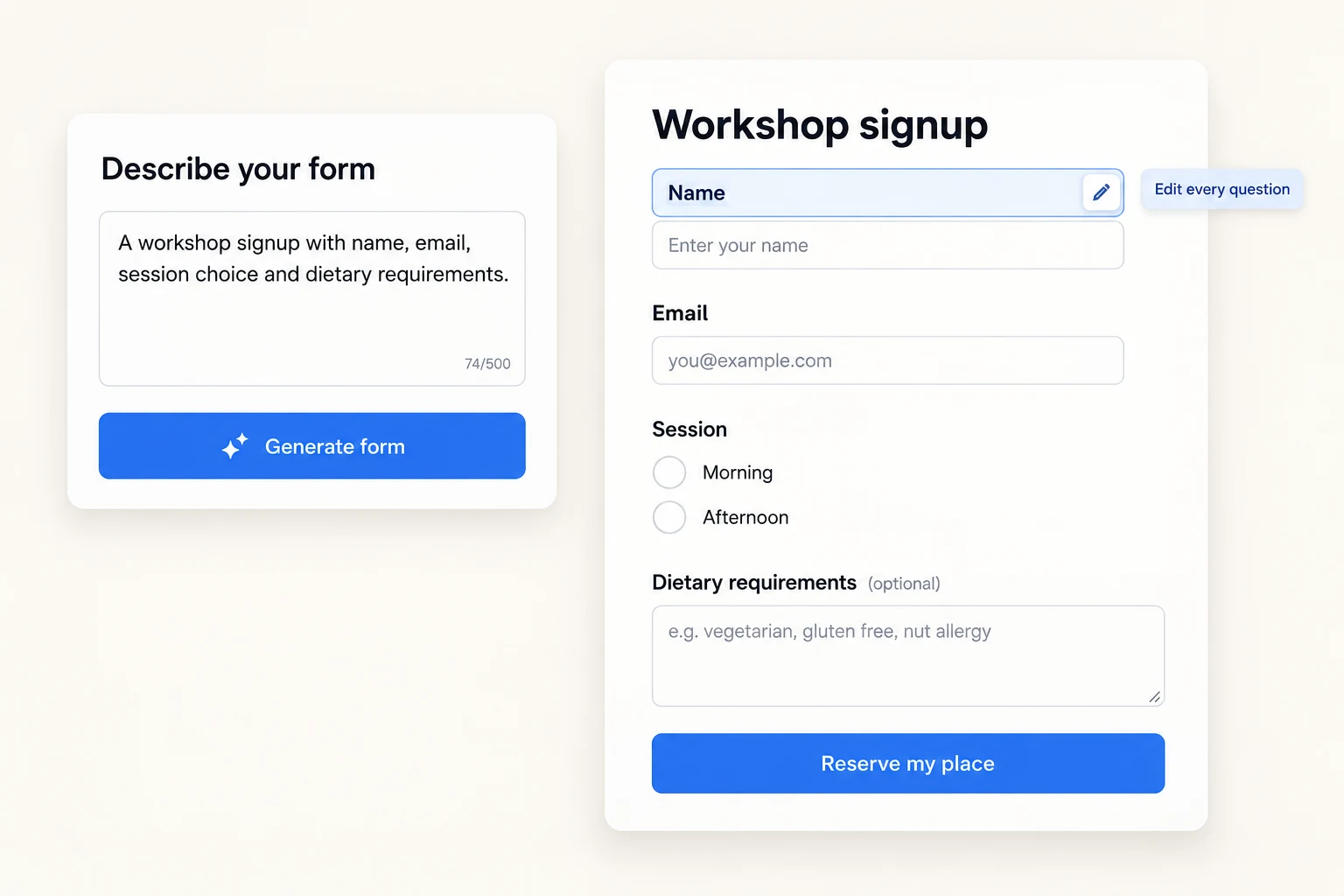
A useful brief says who will fill in the form and what you need to do with their answers. Naming the fields and choices makes the result easier to review.
“Create a workshop signup. Ask for name, email, morning or afternoon session, and optional dietary requirements. Keep it short and label the submit button ‘Reserve my place’.”
Choose “Describe it with AI” when it is available. Write the purpose of the form and the details you want to collect.
Check field types, labels, required fields and answer choices. Remove unnecessary questions and adjust the wording for your audience.
Check the form on a phone, send a test response, then share the link or embed it on your website.
The generated questions are editable.
Use the same Fields tab to change labels, add or reorder questions, and set required answers. Review any logic, payment setup and privacy settings yourself before inviting people to respond.
Explore the form editor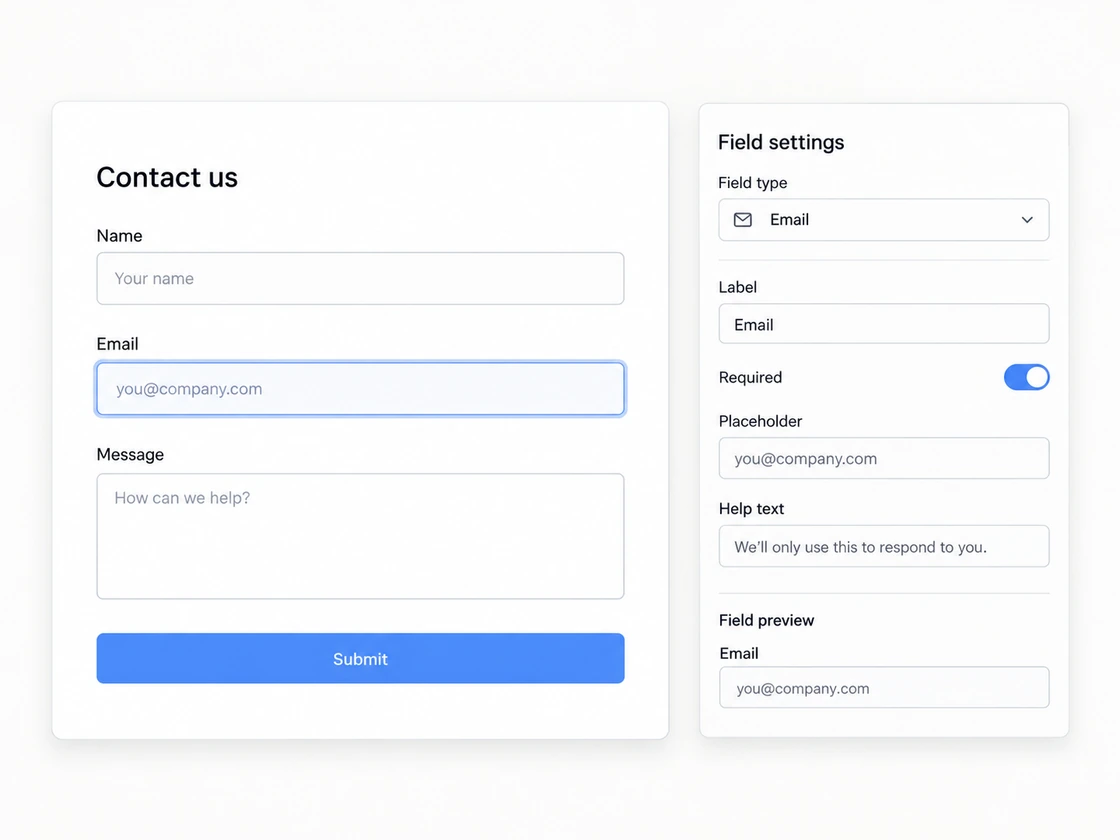
“Ask for name, email, whether this is a sales or support question, and a message. Make company name optional.”
“Collect a one-to-five rating, the most useful session, and one thing to improve. Keep it anonymous.”
“Ask a new client for their goal, budget range, preferred timeline and contact email. Include room for context.”
The AI creation option appears when the service’s generator is available. If you do not see it, start blank or choose a template; the same editor is available either way.
A newly created form can already accept submissions. If you need to finish reviewing it first, turn off “Form is accepting submissions” in Settings → Notifications until you are ready.
The homepage’s example preview demonstrates the idea; it does not send an AI generation request. AI helps create questions here, rather than automatically interpreting your collected responses.
Follow the setup guideSee what it does, who it’s for, and whether it fits your needs.
Opens with product context and a link to this page.