Show and hide fields with conditional logic
A repair booking form that asks about accident damage, warranty cover and delivery at once makes every visitor read past three questions to find their own. Conditional logic keeps the extras out of the way until an earlier answer calls for them.
A rule belongs to the field it controls, not to the form as a whole. Select the field that should appear, then describe the answer that makes it appear. Conditions are evaluated in the visitor's browser as they type.
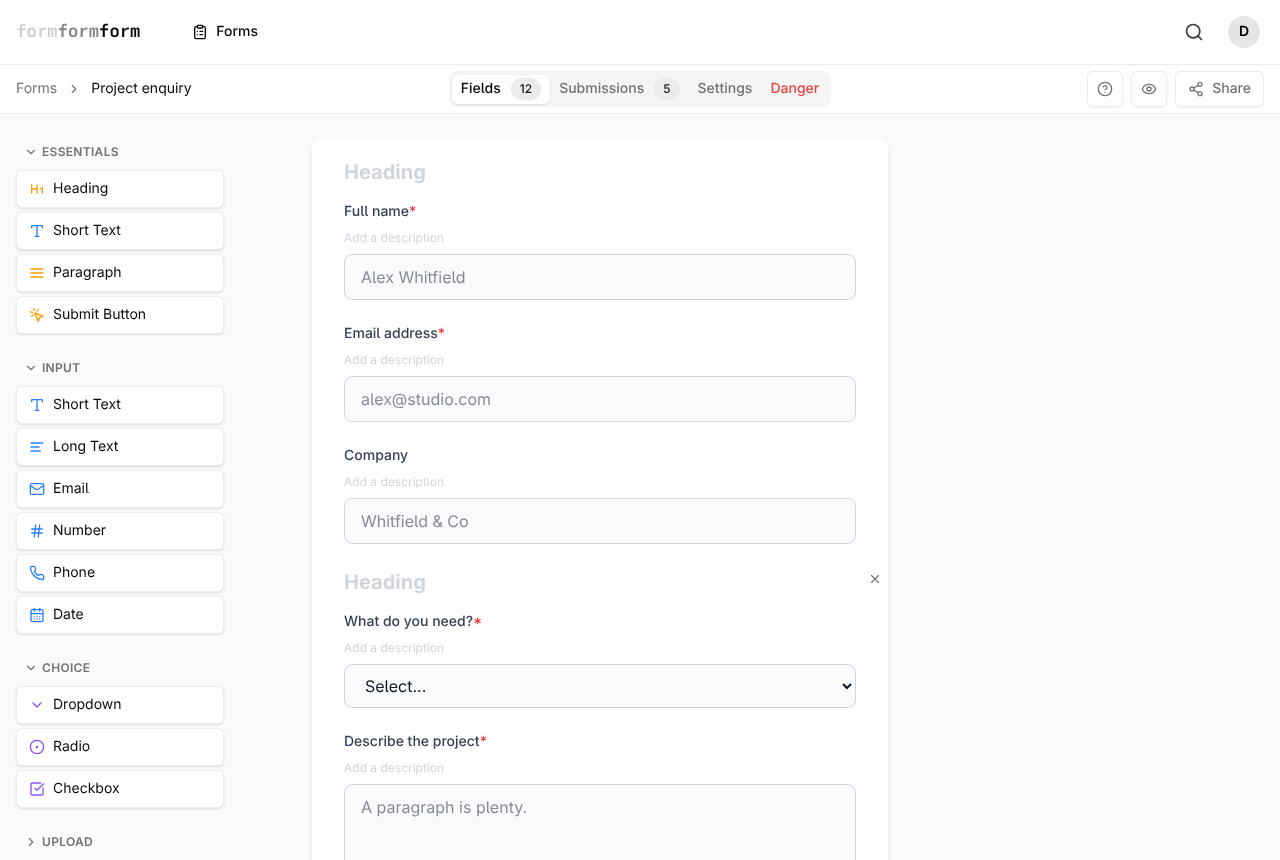
Build the question the rule listens to first
The condition dropdown only lists fields that already exist, so add the triggering question first. Choice fields make the best triggers: when a condition points at a dropdown, radio or checkbox field, the value box offers that field's own options rather than a free-text box, so a typo cannot break the match.
Keep the trigger above the field it controls. A rule can point at a question further down the form, but that question counts as unanswered until the visitor reaches it.
Only fields that collect an answer can act as a trigger. Layout pieces and hidden fields never appear in the condition list.
Add the rule
Say the visitor picks from a dropdown called "What needs fixing?", and choosing "Accident damage" should reveal a File Upload field for photos. The rule goes on the upload field, not the dropdown.
- 1
Open the form and stay on the Fields tab.
- 2
Click the field you want to control — here, the File Upload field. Its settings open in the Field Properties panel on the right; on a narrow screen that panel opens as a sheet.
- 3
Scroll to the bottom of the panel and click Edit Logic.
- 4
In the Field Logic dialog, leave Action set to "Show this field".
- 5
Click Add condition.
- 6
Choose "What needs fixing?" from the first dropdown.
- 7
Pick the Equals operator.
- 8
Set the value. Because the trigger is a dropdown, the box lists its options — select "Accident damage".
- 9
Click Done. Edits save as you make them; there is no save button.
Edit Logic only appears for fields that collect an answer. Headings, paragraphs, dividers, images, page breaks, submit buttons and hidden fields have no logic section.
Require an answer instead of hiding the field
The Action dropdown has a second setting: "Require this field". The field stays on screen throughout and only becomes mandatory once the conditions are met — a phone number that turns compulsory when someone marks the job urgent, say.
Back in the editor, a field carrying a rule shows a small "Has logic" badge. Hover it for a plain summary, or click it to reopen the dialog.
Validation skips hidden fields entirely, so a required field that a rule has hidden will never block submission.
Combine conditions and match values accurately
A rule can hold several conditions. The When dropdown decides how they are read: "ALL conditions met" needs every one to be true, "ANY condition met" needs just one. Drop a condition with the Remove button inside its box.
Eight operators are available: Equals, Not equals, Contains, Not contains, Greater than, Less than, Is empty and Is not empty. The last two need no value, so the value box disappears. Contains and Not contains ignore letter case. Greater than and Less than read both sides as numbers, so keep them to Number fields.
A checkbox field's ticks are compared as one comma-separated string, so Equals matches only when the visitor ticked exactly that box and nothing else. Use Contains to test for a single tick among several.
Check it in Preview before you share
The editor draws every field, rule or no rule, so you cannot judge logic from the canvas. Click the eye button in the top bar to open Form Preview, which loads the real public form. Work through the trigger answers one at a time and watch the controlled fields come and go.
Logic also thins a multi-page form: a page whose answer fields are all hidden drops out of the sequence, and the step count drops with it.
An answer typed before a field was hidden is still sent with the submission. If a question must not reach you once it stops applying, hiding it is not enough.
Frequently asked questions
Can I hide a whole page with conditional logic?
Not directly — page breaks take no rules. A page drops out once every answer field on it is hidden. A heading, divider or image keeps that page in play, so move those onto a page you do want shown.
Can I show a file upload field only when it is needed?
Yes. File Upload sits in the Upload section of the palette and takes logic like any other answer field. Each file is capped at 2 MB, and on an encrypted form the upload is encrypted in the visitor's browser too.
Why is my field still showing when it should be hidden?
Three causes cover most of it: the value does not match exactly, since Equals is literal; the condition points at a question further down the form, which counts as unanswered; or the rule says ANY when you meant ALL. Remember too that the canvas shows every field — judge it in Form Preview.
Related articles
- How the form editor works
The editor has three parts — palette, form, field settings — and edits to fields save as you make them.
- Every field type, and when to use it
A tour of the palette: what each field type collects, and which one fits the answer you want back.
- Split a long form across pages
Add page breaks from the Layout palette to turn one long form into a short sequence of numbered steps.
- Hidden fields and prefilled values
Tag each response with where it came from, and start visible fields off with a value already in the box.
- Required fields and validation
Turn on Required, set length, number and date limits, and require a field only when an earlier answer calls for it.
Nothing here answering your question? The editor is quick enough that trying it is often faster than reading about it.
Open the editor