Every field type, and when to use it
Every field the editor can add sits in the palette down the left of the Fields tab. Choosing between them comes down to one question — what shape of answer do you want back: a line of text, one pick from a list, several picks, a file, or nothing at all.
Here is the full set, group by group, with the settings each type opens up in the Field Properties panel on the right. It pays to decide before you build: a field keeps the type it was created with, so turning a Short Text into an Email later means deleting the question and starting it again.
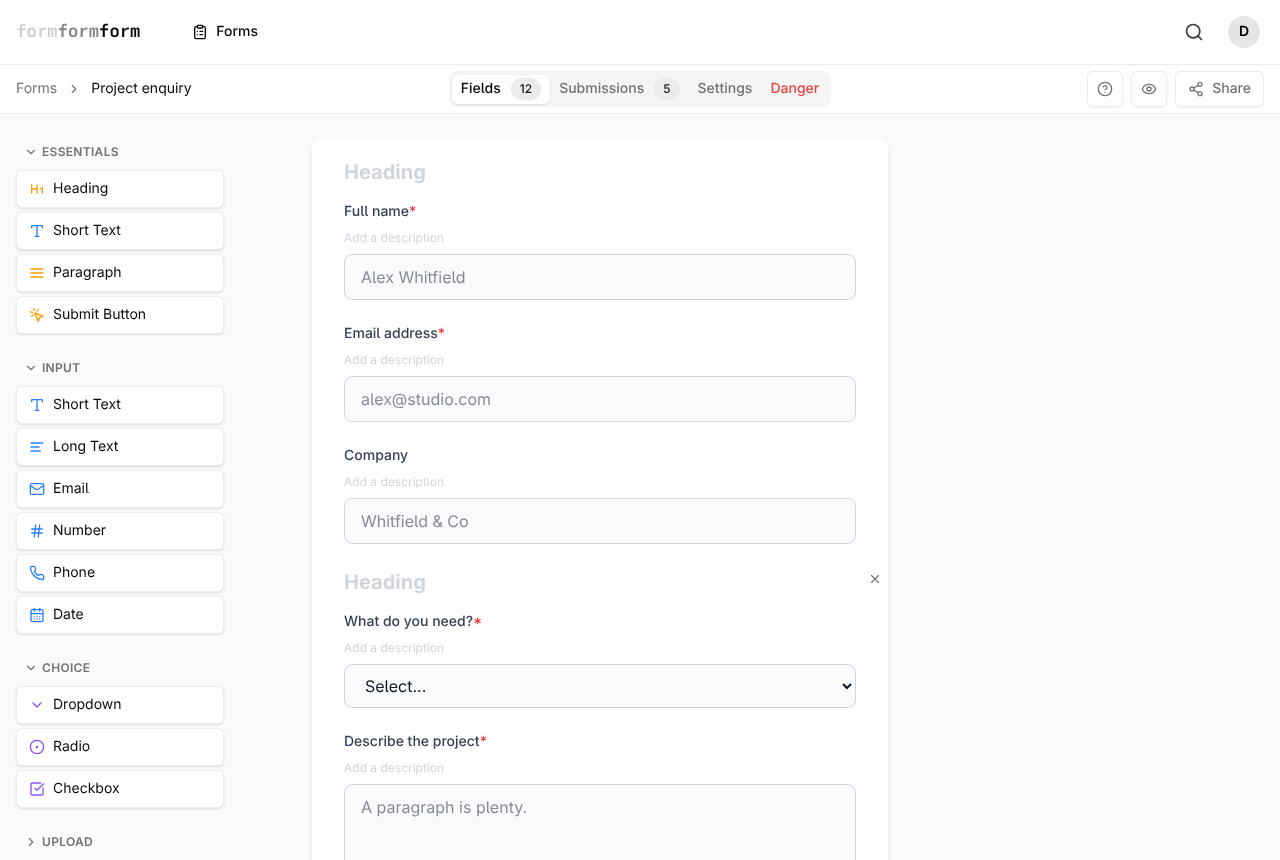
What the five groups hold
Essentials, Input, Choice, Upload and Layout stack down the left as collapsible groups. Essentials is a shortcut rather than a category — Heading, Short Text, Paragraph and Submit Button, the four pieces most forms open with, each repeated in its proper group further down.
Input holds the typed answers: Short Text, Long Text, Email, Number, Phone and Date. Choice holds Dropdown, Radio and Checkbox. Upload holds a single type, File Upload. Layout holds the pieces that display something rather than ask anything: Heading, Paragraph, Divider, Image, Page Break, Hidden and Submit Button.
On a phone the left column is gone. The same five groups sit behind the Add Field button above the form.
From palette to finished question
Whichever type you pick, the sequence is the same: add it, select it, then fill in the panel on the right.
- 1
Open your form on the Fields tab — the first of four, alongside Submissions, Settings and Danger.
- 2
Expand a group in the palette and click the type you want. It lands at the end of the form; drag it in instead and it drops where the dashed line appears.
- 3
Click the new card. Field Properties opens on the right, with the type shown on a badge at the top.
- 4
Set Label to the question the visitor reads. Description adds a line of help underneath; Placeholder puts grey example text inside the box.
- 5
Switch on Required for anything the form should not go through without.
- 6
For Dropdown, Radio and Checkbox, click Edit options — the two starter rows read Option 1 and Option 2 — type your own, click Add for another, then Save.
- 7
Use Edit Logic at the foot of the panel if the field should only appear once an earlier answer calls for it.
- 8
Press the eye button in the top bar to read the form back the way a visitor gets it.
Field changes are written as you make them; the Fields tab has no save button. A form takes only one Submit Button — clicking it a second time opens a short explanation instead of adding a duplicate.
Choosing between the typed inputs
Short Text and Long Text differ in the size of the box and little else: one line with an optional Max length, against a taller box whose height you set with Rows. A vehicle registration is short text; "describe the fault" is long text.
Email, Number, Phone and Date each narrow what will be accepted before the form can be sent. Number carries Min, Max and Step — Step 0.5 for half-day bookings, Min 1 for a quantity nobody should be able to zero out. Date carries Min date and Max date, which is what stops a service booking landing last Tuesday. Most of these also take a Field width: Small (25%), Medium (50%), Large (75%) or Full width, so a postcode and a town can share a line.
A Number field collects a number, it does not do sums with it. There are no calculated fields and no scoring.
One answer, or several
Dropdown, Radio and Checkbox all read from the same Options list; what changes is what the visitor may do with it. Radio lays every choice out at once and takes exactly one — right for the four or five options where seeing them together is part of the decision. Dropdown hides the same single-answer list behind a select control, which is what twenty counties want. Checkbox is the only type that accepts more than one answer.
A single Checkbox option, labelled with your terms and marked Required, is how a form records that someone agreed to them. It is a tick box rather than a signature, and there is no e-signature field.
Options are plain text, with no separate stored value behind the label. What you type is exactly what lands in the submission, the CSV export and any webhook payload.
Uploads, and the fields that ask nothing
File Upload takes one file per field, up to 2 MB. Two documents means two File Upload fields — one labelled "Signed lease", one "Proof of address". On an encrypted form the file is encrypted in the visitor's browser before it leaves the page, and decrypted in yours when you open the submission.
Nothing in Layout collects an answer. Heading breaks a long form into named parts, and while a new form is still called "My new form", renaming the first Heading renames the form as well. Paragraph carries formatted explanation, Divider draws a rule, Image places a picture, and Page Break splits the form into pages with Back and Next buttons. Hidden is never seen by anyone: it takes its value from a URL parameter matching its label, so a link ending ?source=newsletter fills a Hidden field labelled source.
On an encrypted form the answers and the uploaded files alike are unreadable without the private key you saved when you switched encryption on. If that key is lost, those responses cannot be recovered — not by you, and not by us.
Frequently asked questions
Which field type lets someone tick more than one option?
Checkbox. Dropdown and Radio each take a single answer. For a "tick all that apply" question, use Checkbox and write out every option in the Options list.
Can I change a field from Short Text to Email after adding it?
No. A field keeps the type it was created with. Hover the card, click the small x at its top right, confirm with Yes, then add the right type and rebuild any logic that pointed at the old field.
Is there a payment field or a signature field?
Payments are available: add products and priced options, then connect Stripe, PayPal, or Square for secure hosted checkout. There is no e-signature field; use a required checkbox for acknowledgement or a dedicated e-signature tool when execution is required.
Related articles
- Required fields and validation
Turn on Required, set length, number and date limits, and require a field only when an earlier answer calls for it.
- Show and hide fields with conditional logic
Add a rule to a field so it appears, or becomes required, only when an earlier answer calls for it.
- Collect file uploads
Add a File Upload field, then preview or download whatever people attach from the submission page.
- Headings, paragraphs and dividers
Break a long form into readable sections using headings, paragraphs and dividers from the Layout palette.
- Split a long form across pages
Add page breaks from the Layout palette to turn one long form into a short sequence of numbered steps.
Nothing here answering your question? The editor is quick enough that trying it is often faster than reading about it.
Open the editor