Required fields and validation
A required field separates a submission you can act on from one you have to chase. On a project enquiry form, an email address you can reply to is worth insisting on; the company name is not.
Every input field in the editor has a Required switch, and several types carry extra limits underneath it — a character cap, a number range, an earliest and latest date. There is also the conditional case: a field that turns compulsory only once someone has answered something else.
Mark a field as required
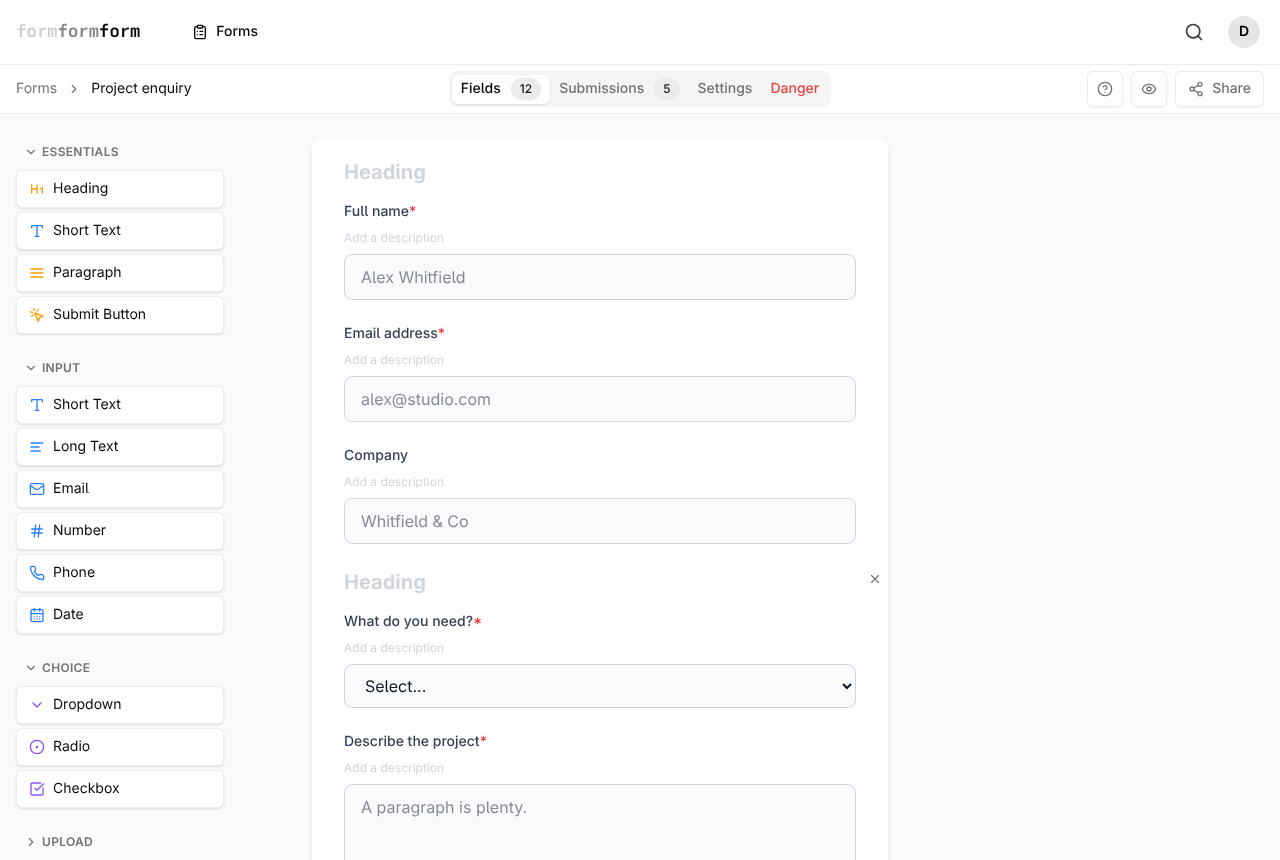
Required lives in the Field Properties panel, which appears as soon as you select a field — to the right of the form on a wide screen, or as a sheet sliding up on a phone.
- 1
Open the form and stay on the Fields tab — the first of four buttons (Fields, Submissions, Settings, Danger) in the bar above the form.
- 2
If the field does not exist yet, drag it in from the palette on the left — Short Text under Essentials, Email and Date under Input, Checkbox under Choice, File Upload under Upload.
- 3
Click the field. It highlights in amber and Field Properties opens, the type shown on a badge below the heading.
- 4
Turn on the Required switch. Layout pieces — Heading, Paragraph, Divider, Image, Page Break, Submit Button — have no switch, because there is nothing to fill in.
- 5
Check the label: a red asterisk now follows it, exactly as respondents will see it.
- 6
There is nothing to save. Field edits are written as you make them; the Save Changes button belongs to the Settings tab.
Turning Required on later does not touch submissions you already hold. Earlier answers stay as they arrived, gaps and all.
Set limits on the answer itself
Under the Required switch, Field Properties changes with the type. Short Text and Long Text get Max length. Number gets Min, Max and Step. Date gets Min date and Max date. Email, Phone, Dropdown, Radio, Checkbox and File Upload have no extra limits — for those, the type is the limit.
Each one is checked twice: the browser stops the visitor before the form is sent, and the server checks again when it lands. On a viewings form, a Min date set to the first day you can take bookings is what keeps requests out of last Tuesday.
Leaving Max length blank does not mean unlimited. Text answers are capped at 5,000 characters by default, so type a figure of your own if you want something shorter — or longer.
Require a field only when it matters
The same conditions that show and hide fields can make one compulsory instead. On that enquiry form, "Which agency are you with?" should be unavoidable for people who picked Agency and irrelevant to everyone else.
- 1
Select the field and click Edit Logic at the foot of the Field Properties panel.
- 2
In the Field Logic dialog, set Action to "Require this field" rather than "Show this field".
- 3
Set When to "ALL conditions met" or "ANY condition met".
- 4
Add a condition: an earlier field, an operator (Equals, Not equals, Contains, Not contains, Greater than, Less than, Is empty, Is not empty) and a value.
- 5
Close the dialog. The field now carries a small "Has logic" tag; hover it for a one-line summary of the rule.
A field hidden by logic is skipped altogether — its limits go unchecked and it can never block a submission. Use "Show this field" when the question should disappear, "Require this field" when it should stay on screen.
See what a respondent sees
The eye icon beside Share, above the form, opens a Form Preview dialog. Fill it in badly on purpose: leave the required fields empty and press the submit button.
Most fields hand the refusal to the browser, so the wording and the language come from the visitor's browser rather than from us. Two cases carry their own message — an empty required Checkbox group answers "This field is required.", and a required File Upload with nothing attached answers "Please attach a file."
Uploads are capped at 2 MB per file, and there is no setting for which file types you accept. On an encrypted form the file is encrypted in the visitor's browser before it leaves, and nothing — file or answers — can be recovered without your encryption key.
Frequently asked questions
Can I make a field required without showing the asterisk?
No. The asterisk comes from the Required switch itself and has no separate setting. If it feels heavy-handed, leave the field optional and explain what you need in its Description.
Why did a submission arrive with a required field empty?
Logic is the usual cause. A field hidden by a "Show this field" rule is skipped by validation, so if the condition did not match, the question was never asked. Check the rule against that submission's answers, and switch the action to "Require this field" if the question should have stayed visible.
Can I validate a phone number or a postcode against a format?
Not at the moment. Phone fields accept whatever the visitor types, and there is no pattern rule. Max length on a Short Text field is the nearest control, and a Description line stating the format you want does the rest.
Related articles
- Every field type, and when to use it
A tour of the palette: what each field type collects, and which one fits the answer you want back.
- Show and hide fields with conditional logic
Add a rule to a field so it appears, or becomes required, only when an earlier answer calls for it.
- How the form editor works
The editor has three parts — palette, form, field settings — and edits to fields save as you make them.
- Collect file uploads
Add a File Upload field, then preview or download whatever people attach from the submission page.
- Split a long form across pages
Add page breaks from the Layout palette to turn one long form into a short sequence of numbered steps.
Nothing here answering your question? The editor is quick enough that trying it is often faster than reading about it.
Open the editor