Split a long form across pages
Thirty questions on one screen read as a chore before anyone answers the first. The same thirty across three screens of ten are the same work, but the person filling them in can see how much is left.
Pages are made with one element: Page Break. Add one and everything after it becomes the next page. There is no page manager and nothing to switch on in Settings.
Decide where the breaks go
Break on a change of subject rather than on a field count. A job application divides cleanly into who the applicant is, what they have done, and what they want to attach. A supplier onboarding form divides into company details, billing, then the documents you need on file.
Three or four pages is plenty. A page holding a single field usually belongs with its neighbour, and every extra Next is one more place for someone to stop.
Add a page break
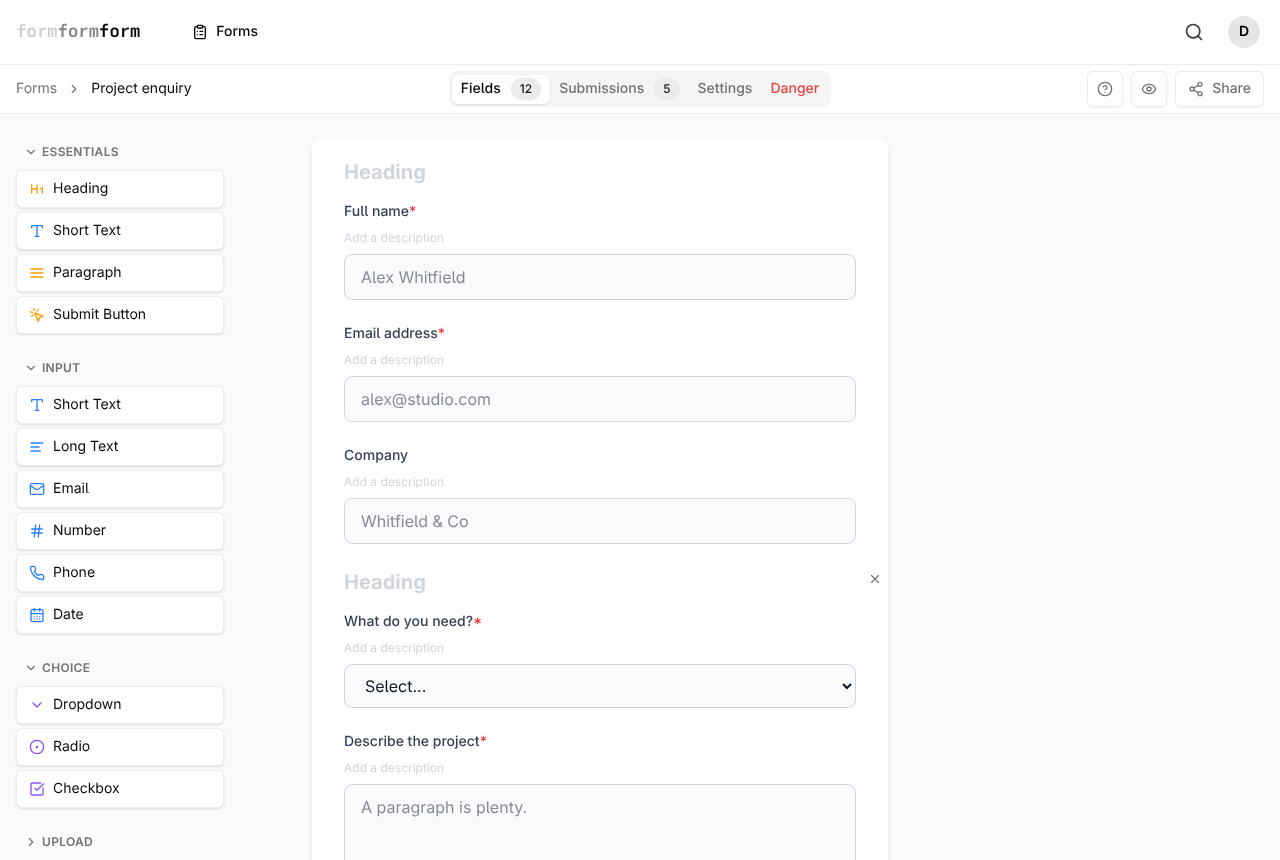
Page Break sits in the Layout section of the palette, alongside Heading, Paragraph, Divider, Image, Hidden and Submit Button. In the editor it shows as a dashed line labelled Page Break. On the public form it draws nothing — it only ends one page and starts the next.
- 1
Open the form and stay on the Fields tab, which is where the editor opens.
- 2
In the palette down the left, scroll past Essentials, Input, Choice and Upload to the Layout section.
- 3
Click Page Break. It is added at the end of the form and a "Field added" toast confirms it.
- 4
Drag its card up the list until it sits between the last field of page one and the first field of page two. Dropping Page Break straight from the palette onto a field puts it above that field instead.
- 5
Repeat for each further page. Two page breaks make three pages.
- 6
To remove one, hover its card, click the small × at the top right and answer Yes to "Delete?".
Selecting a page break shows a Label box in Field Properties, but nothing on the public form uses it. There are no per-page titles — to name a page, put a Heading field at the top of it.
What the visitor gets
Once a form contains a page break, a progress line appears above the fields reading "Step 1 of 3", with a bar that fills as the visitor moves through. Back and Next buttons sit underneath.
The submit button appears only on the final page. A form holds one Submit Button field, drawn on the last page wherever it sits in the list, so no page gets its own submit. Earlier answers are held in the browser and posted together as one submission at the end.
Next does not check the page it is leaving. A required field left blank on page one is caught at submit, and the message appears against that field on its own page, so the visitor has to step back to find it. Keep required fields few and obvious early on.
Pages and conditional logic
Logic attaches to fields, not to the break, so there is no rule that says "skip page 3". Put the same show condition on every field of that page instead. When all of a page's input fields are hidden, the page drops out and the step count adjusts, so someone who does not need the accessibility questions sees "Step 2 of 3" rather than an empty screen.
One catch is worth planning around: a heading, paragraph, divider or image keeps its page in the sequence, because those elements are never hidden by logic. A page you want to vanish cleanly should hold nothing but input fields carrying the condition.
Logic can only be set on input and choice fields. Layout elements, the page break included, have no Edit Logic button.
Walk it through before you share
Open the eye icon at the top right of the editor and click through every page as a visitor would. Paging, the step counter and skipped pages behave there exactly as on the public link, which beats sending yourself test submissions. When the sequence reads well, use Share to copy the link.
The inline embed snippet renders every field in one column and ignores page breaks. If the stepped version matters, send people to the hosted link instead of embedding the form.
Frequently asked questions
How many pages can one form have?
There is no fixed limit. Each page break starts another page and the step counter counts them for you. Long sequences tire people out well before any technical limit does.
If someone presses Back, do they lose what they typed?
No. Moving back and forward keeps everything entered so far, right up to the moment of submitting. A half-finished form is not kept once the tab closes, though — there is no save-and-resume, so answers only become a submission when the form is sent.
Can I put a file upload on its own page?
Yes. Add a File Upload field from the Upload section of the palette and place it after a page break. Each file can be up to 2 MB. On an encrypted form the file is encrypted in the visitor's browser with the rest of the answers, and decrypted when you open the submission with your key.
Related articles
- How the form editor works
The editor has three parts — palette, form, field settings — and edits to fields save as you make them.
- Show and hide fields with conditional logic
Add a rule to a field so it appears, or becomes required, only when an earlier answer calls for it.
- Headings, paragraphs and dividers
Break a long form into readable sections using headings, paragraphs and dividers from the Layout palette.
- Every field type, and when to use it
A tour of the palette: what each field type collects, and which one fits the answer you want back.
- Required fields and validation
Turn on Required, set length, number and date limits, and require a field only when an earlier answer calls for it.
Nothing here answering your question? The editor is quick enough that trying it is often faster than reading about it.
Open the editor