Get an email for every submission
A joiner quoting kitchen fitting work does not sit watching the Submissions tab. The enquiry has to reach him while he is on site, and the mail app on his phone is where it will actually be seen. Every form can send you an email the moment a response lands.
The switch belongs to one form rather than to your account, and it is already on for every form you create. That is worth knowing in both directions: the form you built to test an idea will email you as readily as the one taking real work.
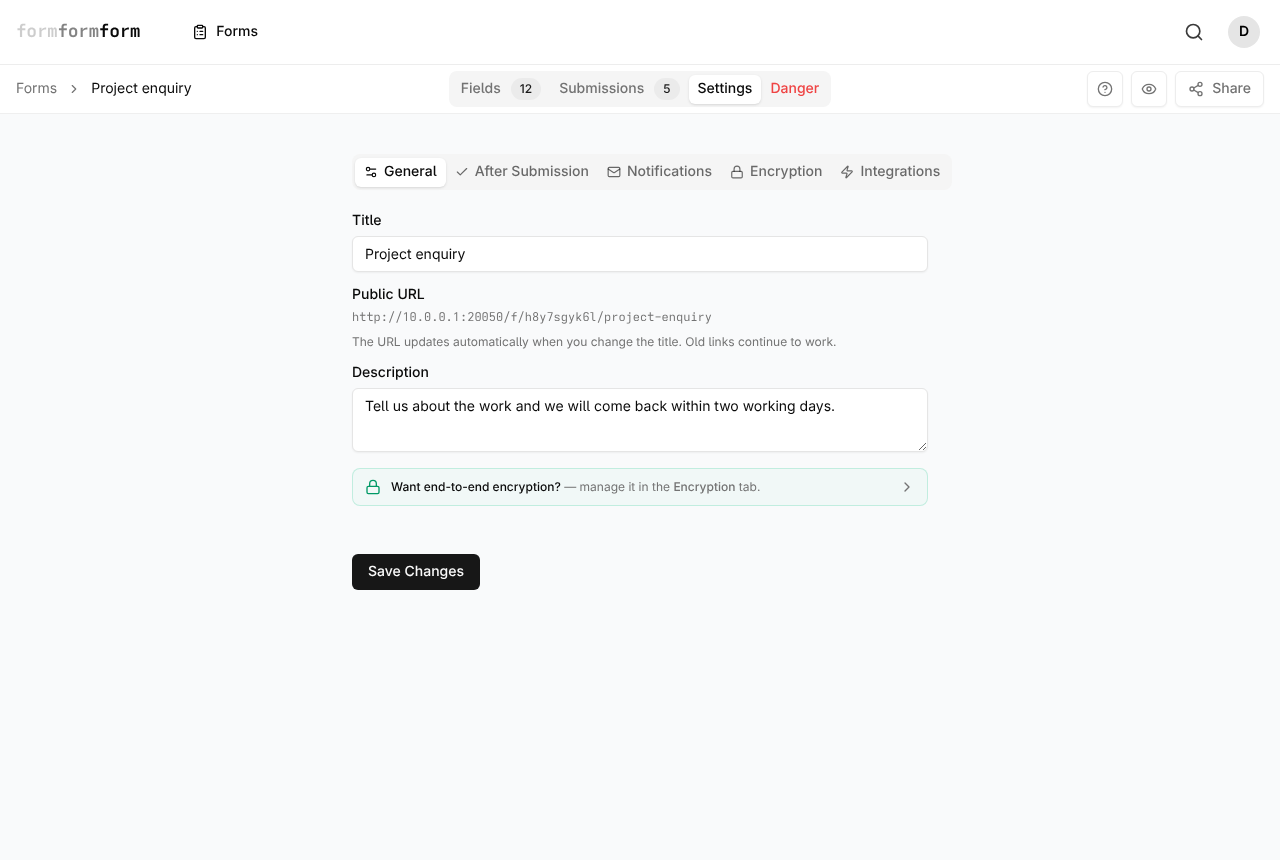
Find the switch under Settings
Open the form and click Settings, the third of the four tabs across the top — Fields, Submissions, Settings, Danger. Settings then divides into five sub-tabs of its own: General, After Submission, Notifications, Encryption, Integrations.
Notifications holds two switches. "Email me on new submissions" is the one that sends the email. "Form is accepting submissions" sits directly beneath it and decides whether the form takes responses at all, so leave that alone unless you mean to close the form to new replies.
- 1
Open the form from your forms list.
- 2
Click the Settings tab.
- 3
Click the Notifications sub-tab.
- 4
Switch on "Email me on new submissions".
- 5
Click Save Changes at the bottom of the page.
The Settings tab does not save as you go, unlike the Fields tab. Nothing you change here takes effect until you click Save Changes.
What the email contains
The subject line reads "New Submission:" followed by the form's title, which is what a mail rule can file on when several forms are running at once. The body lists the answers one per line, field label first, then the date and time the response arrived. A View submission button at the foot opens that response in formformform.
Only answered questions appear. A question left blank writes no line at all, so a short email is not a truncated one — it means the visitor skipped the optional questions. A field that conditional logic had hidden is left out on the same grounds.
One response, one email. There is no daily digest and no way to batch them, so a form taking fifty enquiries a day sends fifty emails.
Where the email is sent
Notifications go to the email address on your account — the address you sign in with. There is no per-form recipient box and no CC list, so every form you own reports to the same inbox.
You change it under Settings, Profile: the "Email address" field on the Profile information panel, then Save. That address is also your login, so moving it moves your sign-in with it. To put a response in front of a colleague, forward it, write a mail rule on the subject line, or send the submission onward with a webhook.
The email arrives however the response was collected — public link, QR code, embed, popup or the API. There is no separate switch per channel.
Uploads and encrypted forms
A File Upload answer does not travel in the email. Its line carries the upload's internal reference rather than the filename, and the file itself is never attached. Click View submission and the upload is waiting there as a card with its name, type and size, a Download button, and a preview if it is an image.
An encrypted form still emails you. Subject and timing are unchanged, but in place of the answers the body says the submission is encrypted and cannot be shown in email. Open it and unlock it with your private key to read it.
Uploads are capped at 2 MB per file. On an encrypted form the file is encrypted in the visitor's browser before it is sent and decrypted again in yours, so the submission page is the only place it can be read.
Send the response somewhere other than your inbox
Email suits a form that takes a handful of responses and needs a person to act on each one. Past that the inbox becomes the bottleneck. A webhook posts each submission to a URL you choose as it arrives, and the Zapier integration fires a New Submission trigger that can create the row, card or message you actually wanted — one direction only, form to app, never a sync back the other way.
Both are set up under Settings, Integrations, and neither one switches the email off. Leave it on if you still want a copy for yourself, or turn it off and let the automation carry the response.
Frequently asked questions
Can the notification go to more than one email address?
Not from formformform. There is one recipient, the address on your account, and no field for a second one. A mail rule that forwards anything with "New Submission:" in the subject is the usual fix; a webhook or a Zap into a shared inbox is the tidier one.
Can I get one summary email a day instead of one per response?
No — there is no digest option. Each submission sends its own email as it arrives. If the volume is too much, turn the switch off and read the Submissions tab when it suits you, or export the responses to CSV instead.
Why does the email show a code where the uploaded file should be?
That is the upload's internal reference. Files are not attached to notification emails, encrypted or not. Click View submission and the file is there with its real name, ready to download or preview.
Related articles
- Read and search your responses
Every response lands in the form's Submissions tab, where you can search it and open any one of them in full.
- Send submissions to a webhook
Point a form at a URL you own and every submission is posted to it as JSON, signed if you want it signed.
- Connect your forms to Zapier
Authorise your account once, then fire a Zap the moment one of your forms is submitted.
- How encrypted forms work
Responses are sealed in the visitor's browser with OpenPGP and opened only by a private key you hold.
- Export responses to CSV
Download every response to a form as one CSV file, and know what each column holds before you open it.
Nothing here answering your question? The editor is quick enough that trying it is often faster than reading about it.
Open the editor