Read and search your responses
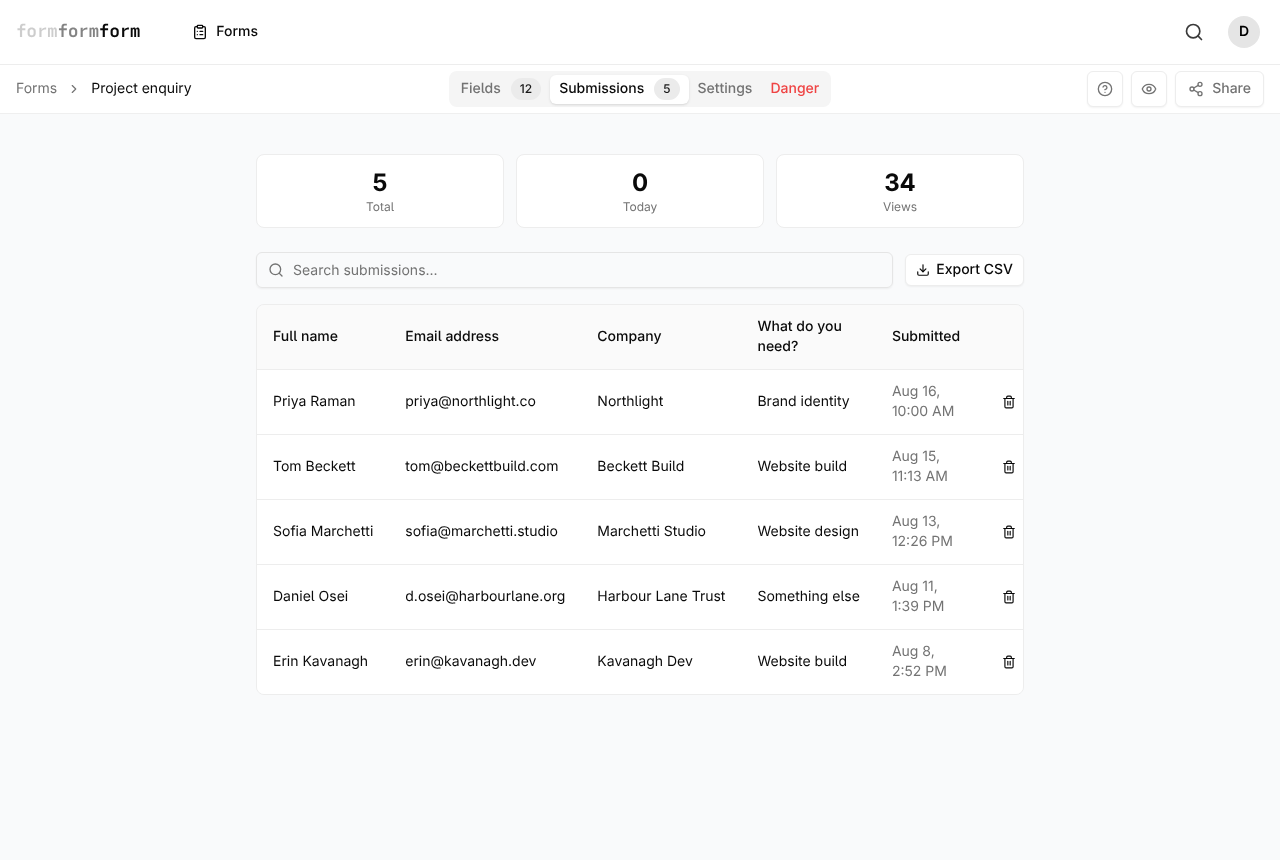
Replies land in one place: the Submissions tab of the form that collected them. A tutor working through this week's lesson requests and a garage checking the morning's bookings see the same screen — three counters along the top, a search box, and a table with one row per response.
This article is about reading what came in. Getting it out of formformform is covered separately.
Open the Submissions tab
There are two ways in. From your forms list, the Responses button on a form's card goes straight there. If the form is already open, Submissions is the second of the four tabs across the top — Fields, Submissions, Settings, Danger.
Three counters sit above the table. Total is every response the form has ever taken. Today counts only those whose timestamp falls on today's date, so it resets overnight. Views is how many times the public form has been loaded — the number worth putting next to Total when a form feels quieter than expected.
- 1
Open your forms list and find the form.
- 2
Click Responses on its card, or open the form and click the Submissions tab.
- 3
Read the three counters: Total, Today, Views.
- 4
Scan the table underneath — each row is one response, with the date it arrived in the Submitted column.
- 5
Click any row to open that response in full.
The table shows the first four answer columns only, no matter how long the form is. Fields from the Layout group — headings, dividers, page breaks — never get a column, because they hold no answer. Hidden fields do, so a campaign tag you pass in the URL shows up in the table like any other value.
Search across the answers
The search box sits above the table, next to Export CSV. Typing filters the rows as you go: partial words match, capitals are ignored, and it looks at every answer in the response — not only the four that made it into the columns. An email domain, a postcode or a product name will find the row even when that field is off the right-hand edge of the table.
It searches the answers and nothing else. Field labels and the Submitted date are outside it, so there is no way to search for "everything from last Tuesday". Clearing the box brings every row back.
On an encrypted form the search box finds nothing, and that is correct behaviour rather than a fault. Those answers are only ever stored as ciphertext, so there is no plain text on the server for a search to run against.
Read one response in full
Clicking a row opens the submission on its own page: every field in form order, label above answer, with a dash where a question was left blank. Attachments appear as cards showing filename, type and size with a Download button; images also render a preview.
Newer and Older in the top right step through responses in date order without going back to the table — the quickest way to work through a morning's arrivals. Back to submissions returns you to the tab. Beneath the answers sits a short metadata block: when the form was filled, the IP address, and the browser's user agent. A response sent from a device that was offline at the time carries an Offline badge next to its filled time.
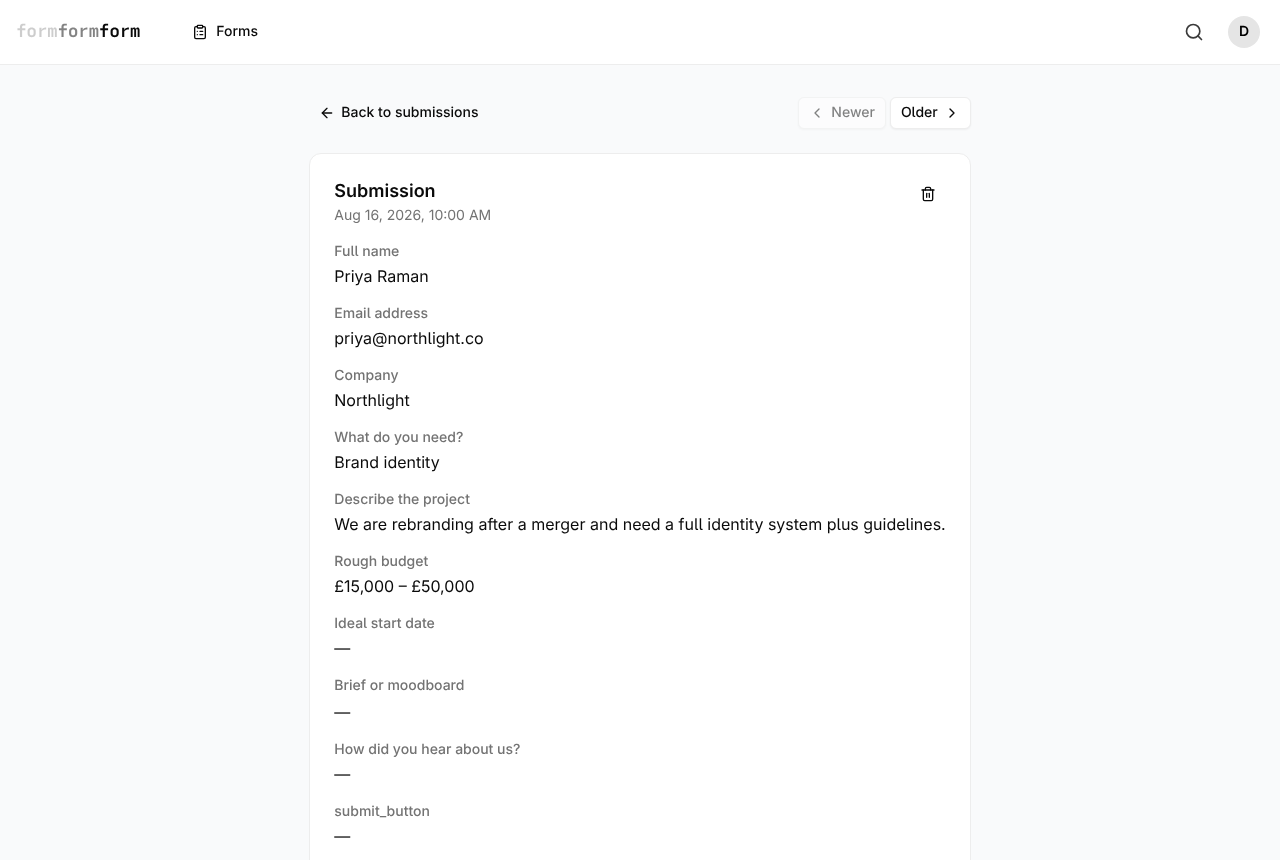
The trash icon next to the heading deletes the response. It asks "Delete?" once and then the row is gone for good — there is no archive or bin to recover it from, so export first if you might want it later.
Unlock an encrypted form's responses
Rows on an encrypted form all look alike in the table: a padlock and the opening of a PGP block where the answers would be. Nothing readable exists server-side, so decrypting happens in your browser.
Open the response and the "Unlock with your private key" panel appears. Paste the armored private key you downloaded when you turned encryption on, or use Upload key file to pick the .asc file, add the passphrase if your key has one, and click Decrypt. The answers replace the panel. The key stays in that browser, so the next response opens without asking again — Unload key clears it when you are done, which matters on a shared machine.
There is no recovery path. Lose the private key and neither you nor we can open those responses, or the files attached to them. Keep a copy somewhere you would keep a backup, not only in the browser you decrypted from.
Take the responses elsewhere
Export CSV, beside the search box, downloads every response for that form — not only the rows currently matching a search — newest first, with Submitted At, IP Address, Filled At and Was Offline as extra columns after the answers. An encrypted form exports the armored payload per row instead; you decrypt those yourself.
If you would rather not come back to this tab at all, switch on "Email me on new submissions" under Settings, or send each response onward as it arrives with a webhook or a Zap.
Frequently asked questions
Why does the submissions table only show some of my questions?
The table is capped at the first four answer fields so a row stays readable. Nothing is lost — click the row and the full response lists every field, and search still matches answers in the columns you cannot see.
Can I filter responses by date?
Not in the tab. Search matches answer text only, and the Today counter is the one date filter there is. For a date range, use Export CSV and sort on the Submitted At column in a spreadsheet.
Do I get an email when someone responds?
Only if you ask for it. "Email me on new submissions" is a switch under Settings, Notifications, and it is off by default. With it off, the Submissions tab is the only place a new response shows up.
Related articles
- Export responses to CSV
Download every response to a form as one CSV file, and know what each column holds before you open it.
- Delete a response, and what that means
Remove a submission from the table or from the response page, and understand what goes with it.
- Get an email for every submission
Send every new response to your inbox, and know what the email will and will not contain.
- How encrypted forms work
Responses are sealed in the visitor's browser with OpenPGP and opened only by a private key you hold.
Nothing here answering your question? The editor is quick enough that trying it is often faster than reading about it.
Open the editor