How encrypted forms work
Almost every form is encrypted in transit and at rest, which still leaves the company running it able to read what arrives. An encrypted form closes that gap: the answers are sealed in the visitor's browser before they are sent, and what reaches our servers is ciphertext. A grievance report to an HR team, a safeguarding disclosure to a charity, case details going to a solicitor — those are the forms worth the extra step.
The mechanism is OpenPGP, the standard behind PGP and GnuPG. Your form carries a public key; you hold the matching private key. That trade is the entire feature, including the part nobody can undo: lose the private key and the responses stay sealed for good.
Set the key up before you share the form
Encryption is configured per form, in the editor, and it has to be done before the first response arrives. Open the form, click the Settings tab, then the Encryption sub-tab — it sits between Notifications and Integrations.
The keypair is generated in your browser, not on our servers. The public half is saved to the form so visitors can encrypt to it. The private half downloads to your machine and is never sent to us. If you already use OpenPGP, switch to "Use existing public key" instead, paste your armoured public key block, and nothing new is generated.
- 1
Open the form, click the Settings tab, then the Encryption sub-tab.
- 2
Switch on "End-to-end encrypt this form".
- 3
Choose a key algorithm. Curve25519 is marked Recommended; Curve448 and RSA 4096 are there for people with an existing preference.
- 4
Type a passphrase. It is optional, but it protects the key file if that file ever leaks, and you will enter it when you decrypt.
- 5
Click Generate keypair. The private key downloads straight away as an .asc file named after your form.
- 6
Move that file somewhere durable — a password manager or an encrypted vault, not the Downloads folder.
- 7
Tick "I have downloaded and safely stored my private key."
- 8
Click Save Changes.
Save Changes stays disabled until that box is ticked; until then the line beside it reads "Download and confirm your private key before saving." Never paste a private key into the setup box — it is rejected on purpose, because the private half must never reach the server.
What the person filling it in sees
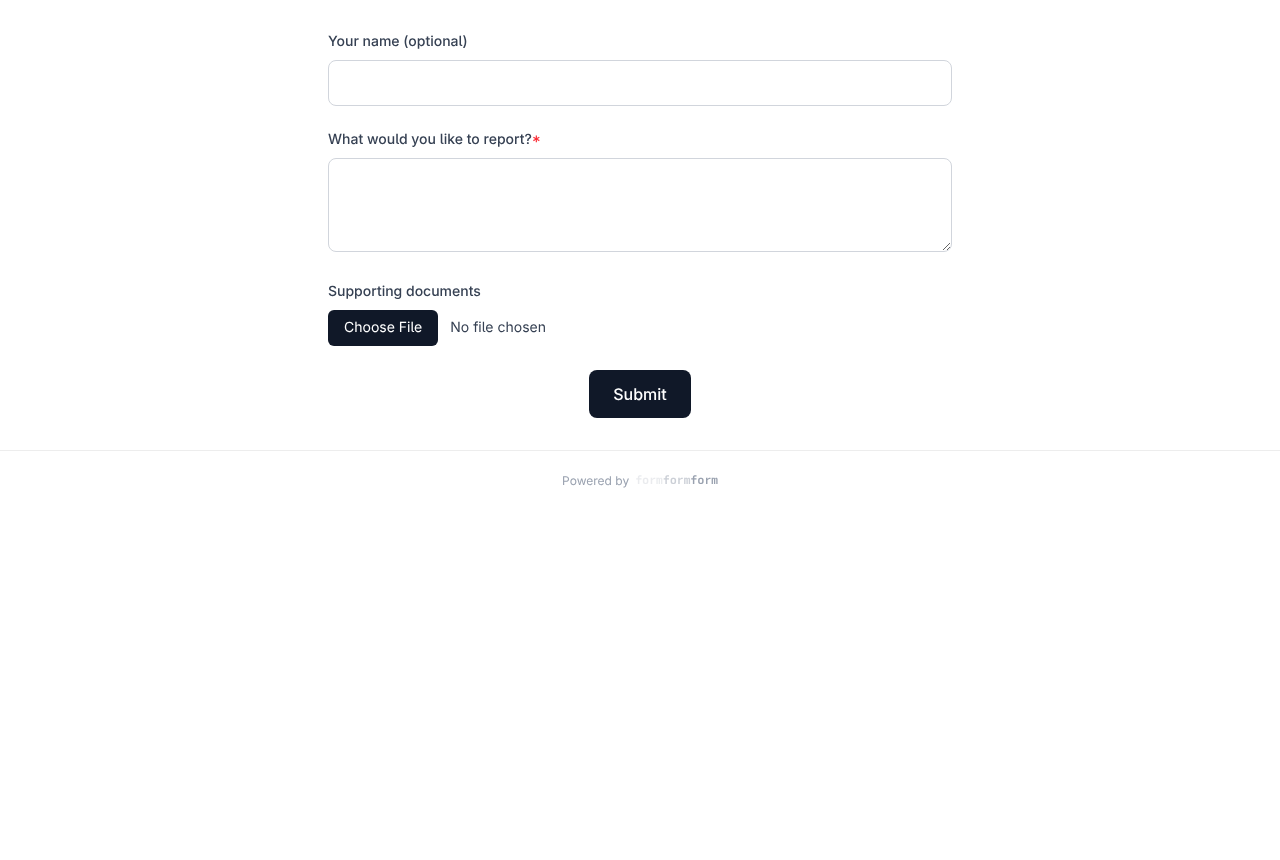
Very little changes for them. Required fields, conditional logic and page breaks all behave as usual, because those run in the browser before anything is sealed. The difference arrives at the end: the submit button reads "Encrypting…" for a moment while the whole answer set is encrypted, then the response goes.
Under the form sits a small badge — "End-to-end encrypted with OpenPGP" — with the last sixteen characters of your key fingerprint beneath it, so anyone who cares can check it against the fingerprint you published. Uploads take the same route: file bytes are encrypted on the device, and the server never learns the filename or file type.
Encryption needs a secure context, so the page must be served over HTTPS. On a plain http:// address the browser blocks it and the visitor gets an error rather than a sent form. Uploads are tighter here too — the 2 MB per-file ceiling applies to the ciphertext, and PGP armour inflates a file by about a third, so the largest original that fits is nearer 1.4 MB.
Unlock a response
In the Submissions tab, rows on an encrypted form carry a padlock and a fragment of the armoured PGP message instead of answers. That fragment is genuinely all that is stored. Click a row to open the submission.
The submission page shows an "Unlock with your private key" panel. Paste the armoured private key block, or click Upload key file and pick the .asc file you saved. Enter the passphrase if the key has one, then click Decrypt. The answers appear laid out as they would be on any other form, and attached images decrypt into previews you can download under their real names.
The key is remembered in that browser so you need not paste it every visit. The passphrase is held in memory only. Keys already present are listed under "Private keys on this device", each with a Remove link, and every stored key is tried in turn — useful when you run several encrypted forms.
Decryption is local to that browser on that device. Reading responses on your phone means putting the key file on your phone as well. "None of your stored keys could decrypt this" means the wrong key, or a passphrase you have not entered yet.
What you give up, and what you cannot undo
Once the first response lands, the key is frozen: an amber notice replaces the controls, because swapping keys then would strand the responses you already hold. To run the same questions under a different key, use Duplicate on the form's menu in the forms list and set the copy up from scratch. Before any response arrives you can still change course — "Use a different key" clears the current key behind a confirmation, and "Restore current key" puts it back if you clicked by mistake.
Everything downstream is sealed too, which is the point and also the cost. Email notifications say a response arrived but carry no contents. Search in the Submissions tab returns nothing, as there is no plaintext to match. Export CSV gives you submission times and the armoured payload, not columns of answers. Webhooks and the Zapier trigger send an encrypted flag and the same opaque blob, so a Zap can announce a submission but cannot branch on what it says.
There is no recovery path. We never hold your private key and cannot reset it, so a lost key file leaves those responses permanently unreadable — by you, by us, by anyone who takes our servers. Treat the file the way you would treat account recovery codes.
Frequently asked questions
Can formformform staff read an encrypted submission?
No. The response is encrypted in the visitor's browser and the private key never leaves your device, so ciphertext is all we ever receive or store. It is a property of how the data exists, not a promise about our conduct — which is exactly why it is worth doing this way.
Can I turn encryption on for a form that already has responses?
No. The encryption panel locks as soon as a form has its first submission, since introducing a key halfway would leave some responses readable and some not. Duplicate the form, encrypt the copy, and share the new link.
Can I use one key across several encrypted forms?
Yes. On each new form choose "Use existing public key" and paste the armoured public key block you already have. One private key then opens all of them, and the unlock panel tries every key stored in your browser until one fits.
Related articles
- Collect file uploads
Add a File Upload field, then preview or download whatever people attach from the submission page.
- Read and search your responses
Every response lands in the form's Submissions tab, where you can search it and open any one of them in full.
- Export responses to CSV
Download every response to a form as one CSV file, and know what each column holds before you open it.
- Turn on two-factor authentication
Add a six-digit code from an authenticator app to your login, and keep the recovery codes that get you back in.
Nothing here answering your question? The editor is quick enough that trying it is often faster than reading about it.
Open the editor