Export responses to CSV
A bakery taking standing orders through a form still has to pick and pack from a list. Export CSV is how the Submissions tab becomes that list — one file, one row per response, ready for a spreadsheet, an accountant, or the mail merge that prints the badges.
It is a plain download rather than a report you configure or a job you schedule. One click, and everything the form has ever collected streams into your browser.
Download the file
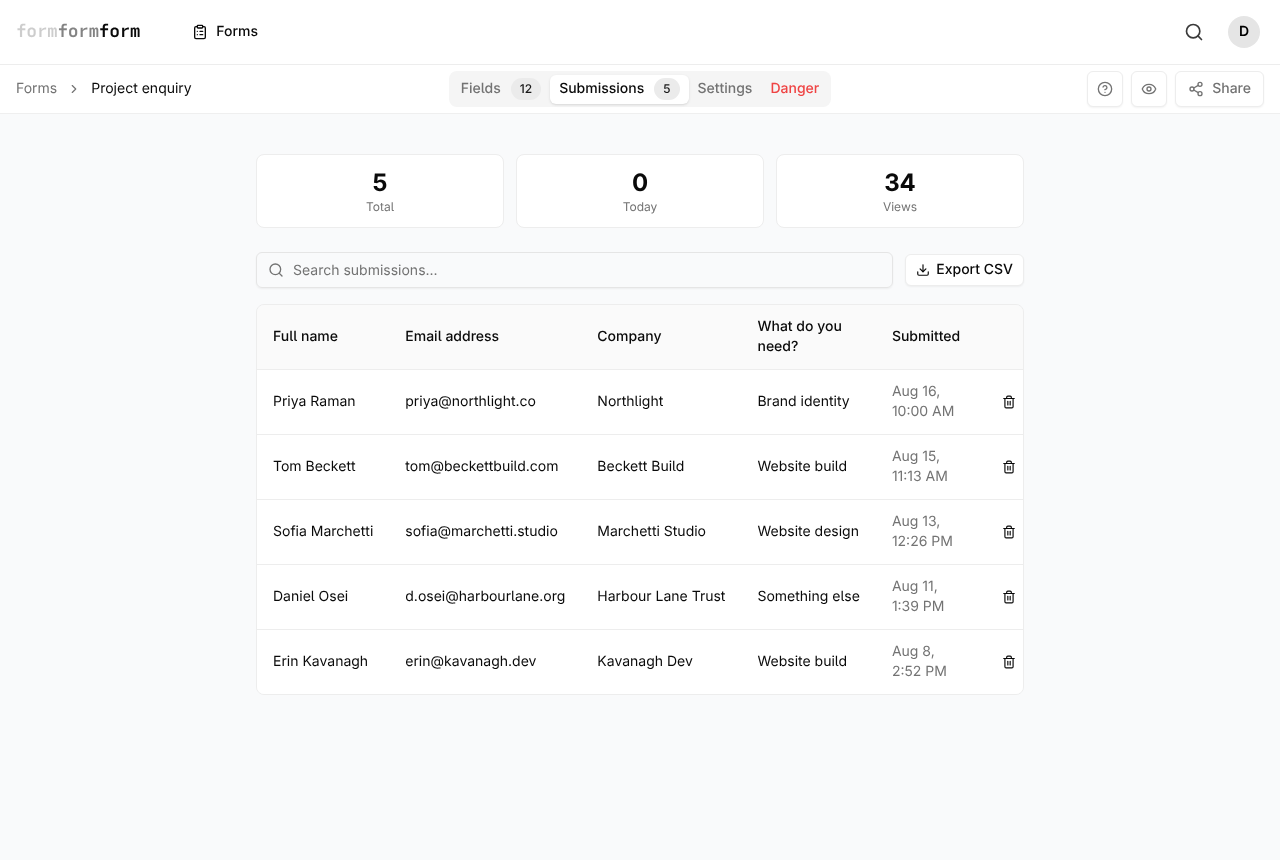
The button is on the Submissions tab, immediately to the right of the search box. There is no options dialog: clicking it starts the download straight away.
The file is named after the form's own address. A form living at /f/k3p9/weekly-bread-order arrives as weekly-bread-order-submissions.csv, so a folder of exports from different forms stays readable without renaming anything.
- 1
Open the form from your forms list.
- 2
Click the Submissions tab — second of the four across the top, after Fields and before Settings and Danger.
- 3
Click Export CSV, beside the search box.
- 4
The file downloads immediately. Nothing is emailed and nothing is kept on the server.
- 5
Open it in your spreadsheet, choosing UTF-8 if you are asked about encoding.
Search narrows the table on screen only. Export CSV always writes every response the form holds, so typing a name into the search box first will not trim the download.
What ends up in the columns
Every field that captures an answer gets a column, in the order the fields sit in the form, headed by that field's label. Elements from the Layout section of the palette — headings, paragraphs, dividers, images, page breaks, the submit button — hold no answer and never get a column. Hidden fields do get one, so a campaign tag passed in the URL exports alongside the visible questions.
Four fixed columns follow the answers: Submitted At, IP Address, Filled At and Was Offline, the last reading Yes or No. Rows are newest first. Both timestamps are written in UTC, not your local time, so a nine o'clock order placed in London in July reads 08:00:00.
A checkbox field's ticks land in a single cell, joined with commas. A File Upload column holds the upload's id rather than the file itself — the attachment stays in formformform, where the submission page shows it with a Download button. Two fields sharing a label produce two identically named columns, which is worth avoiding before the responses pile up.
Deleting a field deletes the answers already given to it. The column and its history disappear from every export made afterwards, so download a copy before you tidy up a form that is already collecting.
Working with the file
Answers are quoted properly on the way out, so a long-text reply containing commas, quote marks or line breaks stays inside one cell instead of spilling across the row. Blank cells mean the question was skipped, or was hidden by conditional logic when that person filled the form.
Because rows come out newest first, sorting ascending on Submitted At is usually the first thing to do — that column is already in a shape spreadsheets sort correctly. For a date range, filter on the same column; there is no date filter inside formformform to do it for you.
The file is UTF-8 with no byte-order mark. Double-clicking it in Excel on Windows lets Excel guess, which turns an accented name into mojibake; use Excel's text import and set the encoding to UTF-8. Google Sheets and Numbers read it correctly as it is.
Exporting an encrypted form
An encrypted form has no readable answers on the server, so its export cannot have answer columns. It downloads as a different file — weekly-bread-order-submissions-encrypted.csv — with five columns: Submitted At, IP Address, Encrypted Payload (PGP), Filled At and Was Offline.
Each payload cell holds one complete armored PGP block, the same blob the submission page decrypts for you in the browser. The CSV gets no such help: you decrypt those cells yourself, with your private key and whatever OpenPGP tooling you already use. For reading a handful of responses, opening them one at a time in the app is far less work.
There is no recovery path. If the private key is gone, neither you nor we can open an exported payload, and the files attached to those responses stay unreadable too.
Exporting without clicking the button
The same CSV is available over the REST API at GET /api/v1/forms/{form}/submissions/export, authenticated with a token for the account that owns the form. That is the route to point a nightly script or a reporting tool at.
If what you actually want is each response as it arrives rather than a file after the fact, send it onward instead: a webhook fires on every submission, and Zapier's New Submission trigger does the same for whichever app you connect there. Both are one-directional — a submission triggers an action elsewhere, and nothing flows back into the form.
The API route always writes the answer-column layout, including for an encrypted form, where those columns come out empty. Use the Export CSV button when the form is encrypted.
Frequently asked questions
Can I export only the responses I searched for?
No. The search box filters the table you are looking at; Export CSV ignores it and writes every response. Export the lot and filter in the spreadsheet, which also lets you filter on the date, something the tab cannot do.
Do uploaded files come out in the CSV?
No. A File Upload column holds the upload's id, not the file. Open the response from the Submissions tab and use the Download button on the attachment. Files are capped at 2 MB each, and on an encrypted form the file is decrypted in your browser when you download it.
Why is one of my questions missing from the export?
Either it was a Layout element — a heading, divider or page break collects nothing, so it gets no column — or the field has since been deleted, which removes the answers stored against it as well. There is no way to recover a deleted field's answers from a later export.
Related articles
- Read and search your responses
Every response lands in the form's Submissions tab, where you can search it and open any one of them in full.
- Delete a response, and what that means
Remove a submission from the table or from the response page, and understand what goes with it.
- How encrypted forms work
Responses are sealed in the visitor's browser with OpenPGP and opened only by a private key you hold.
- Send submissions to a webhook
Point a form at a URL you own and every submission is posted to it as JSON, signed if you want it signed.
- Get an email for every submission
Send every new response to your inbox, and know what the email will and will not contain.
Nothing here answering your question? The editor is quick enough that trying it is often faster than reading about it.
Open the editor