Collect file uploads
A file field is what stops a form being only text. A lettings agent asks for a scan of the signed lease, a repair shop asks for a photo of the damage, a studio asks applicants for a portfolio PDF — and the attachment arrives sitting next to the answers it belongs to.
In the editor the field is called File Upload and it lives in the Upload group of the palette. Each one takes a single file of up to 2 MB.
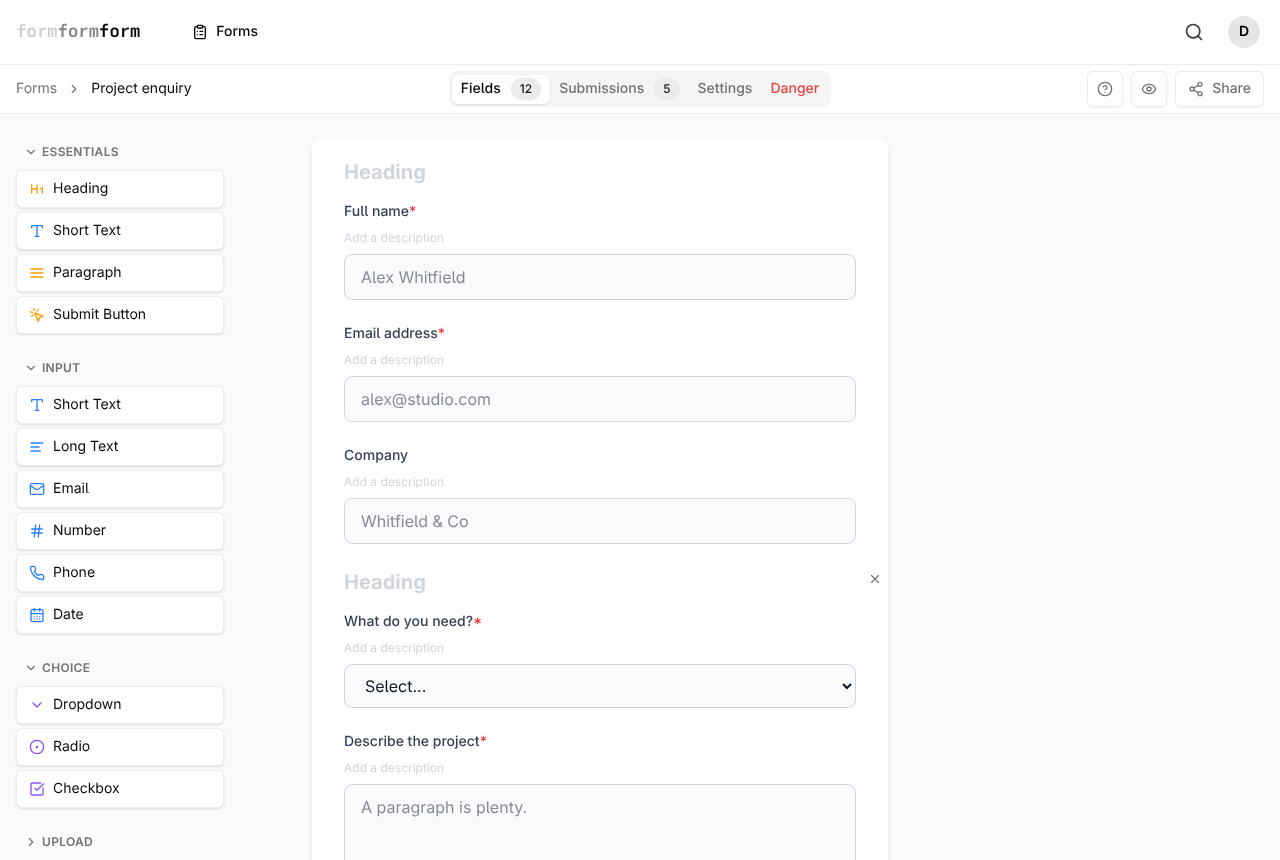
Add a File Upload field
Upload is the fourth group in the palette, below Choice, and File Upload is the only field in it. Clicking adds the field to the end of the form; dragging it in lets you drop it between two existing fields.
Then give it a label a stranger can act on. The default, "Upload a file", tells nobody what to send. "Signed lease — PDF or clear photo" does.
- 1
Open the form and stay on the Fields tab.
- 2
In the palette, expand Upload and click File Upload.
- 3
Click the new field in the form to open its Field Properties panel.
- 4
Replace the Label with the document you actually want.
- 5
Use Description for anything they need warned about — which page you need, or the 2 MB limit.
- 6
Turn on Required if the submission is useless without the file.
One File Upload field holds one file. Three photos of a damaged delivery means three fields, labelled separately — there is no multi-file picker on a single upload field.
What the visitor does
On the live form the field is a plain file picker. Choosing a file starts the upload immediately: "Uploading…" appears underneath, then the filename with "attached" after it. They can carry on with the rest of the form while that runs.
The upload and the submission are separate events. If someone attaches a file and then closes the tab without submitting, the file is discarded and nothing lands in your Submissions tab. A required upload with nothing attached stops the submit and shows "Please attach a file."
2 MB is the hard ceiling per file, and there is no warning before the attempt — an oversized file comes back as "Upload failed. Please try again." Put the limit in the field's Description so nobody has to discover it that way.
Ask for the file only when it is needed
Most forms need an attachment down one branch and not the others: a damage claim needs the photo, a general enquiry does not. Select the file field and click Edit Logic in Field Properties. Set Action to "Show this field", then add a condition on an earlier answer — "What is this about?" equals "Damage claim".
The other action is "Require this field": the upload stays visible throughout and only becomes compulsory once the condition matches.
Get the file out of the response
The Submissions tab shows the attached filename in the row rather than an internal reference, so you can tell at a glance which responses came with something. Click a row to open the full submission.
Each attachment is a card: filename, file type, size, and a Download button. Images also render a preview inside the card, and clicking the preview opens the full-size image in a new tab.
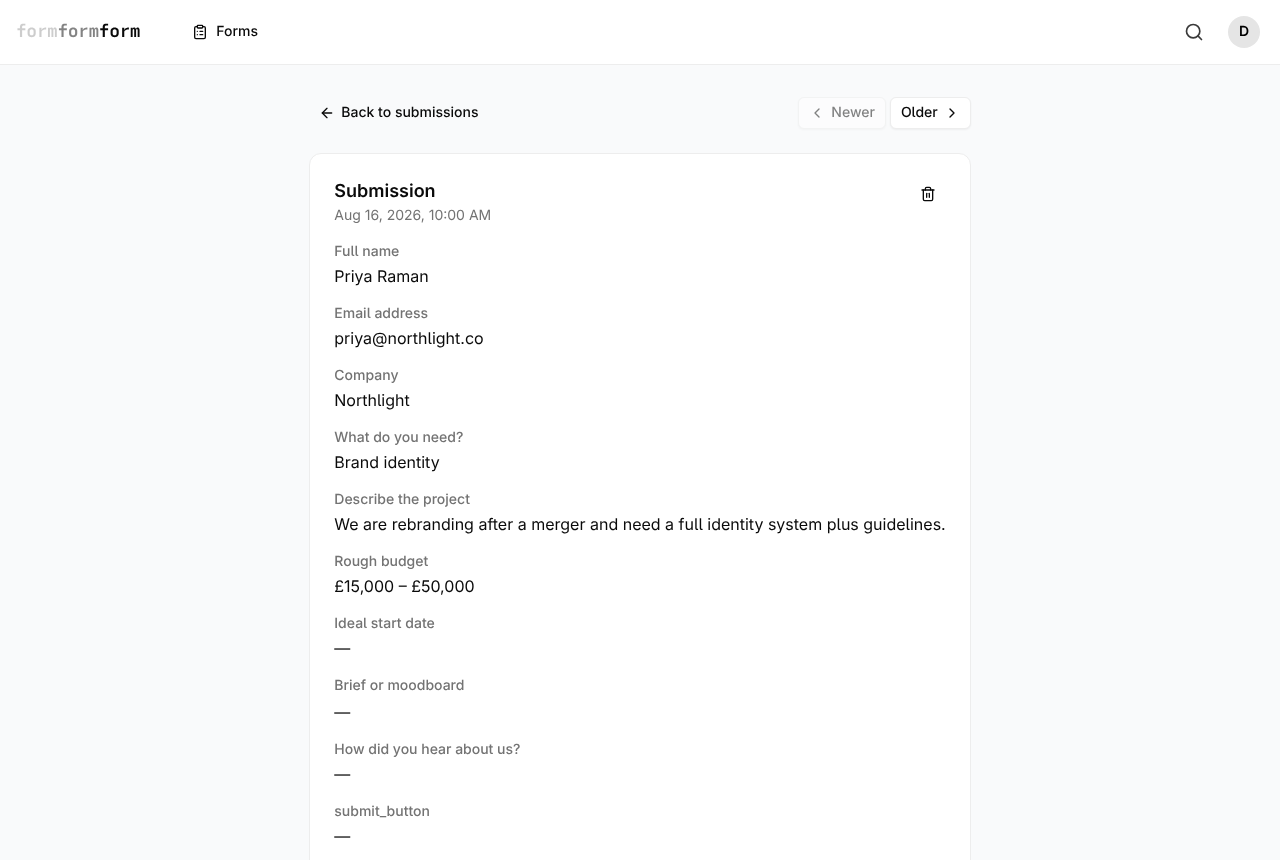
Export CSV gives you the answers, not the files. Attachments are downloaded from the submission page, one at a time — there is no bulk archive.
Uploads on an encrypted form
If the form has encryption turned on in Settings, files are encrypted in the visitor's browser before they leave the device. The server only ever stores ciphertext, and it does not keep the original filename or file type — those ride inside the encrypted answers.
To see them, open the submission and unlock it with your private key. Image attachments decrypt in your browser and appear as previews; Download decrypts the file and saves it under its real name.
There is no recovery path: without the private key you downloaded when you switched encryption on, neither you nor we can open those responses or their attachments. Encryption also inflates a file by roughly a third, so the largest practical original here is nearer 1.4 MB than 2 MB.
Frequently asked questions
Can someone upload more than one file at once?
Not into one field. A File Upload field takes a single file, so a form needing a passport scan and a proof of address needs two fields — which also makes the response easier to read later.
Can I restrict uploads to PDFs only?
There is no accepted-formats setting in the editor today. State what you want in the label or Description — "PDF or JPG, up to 2 MB" — and check on the way in: the submission page shows each file's type next to its name.
Why did someone's upload fail?
Almost always size. The ceiling is 2 MB per file and the message they see is "Upload failed. Please try again." A photo straight off a phone camera is usually over it, so ask for a resized image, or for a link if the file is genuinely large.
Related articles
- Every field type, and when to use it
A tour of the palette: what each field type collects, and which one fits the answer you want back.
- Required fields and validation
Turn on Required, set length, number and date limits, and require a field only when an earlier answer calls for it.
- Read and search your responses
Every response lands in the form's Submissions tab, where you can search it and open any one of them in full.
- How encrypted forms work
Responses are sealed in the visitor's browser with OpenPGP and opened only by a private key you hold.
- Show and hide fields with conditional logic
Add a rule to a field so it appears, or becomes required, only when an earlier answer calls for it.
Nothing here answering your question? The editor is quick enough that trying it is often faster than reading about it.
Open the editor