Import your forms and responses from another service
Switching form builders usually means rebuilding each form by hand and leaving years of responses behind in an account you still pay for. The import does both jobs for you: it reads your forms from the old service, recreates them as formformform forms, and copies their responses across with the dates they were submitted.
It reads from the old service and never writes to it. Your forms there keep working, keep their links and keep collecting responses until you decide to switch them off.
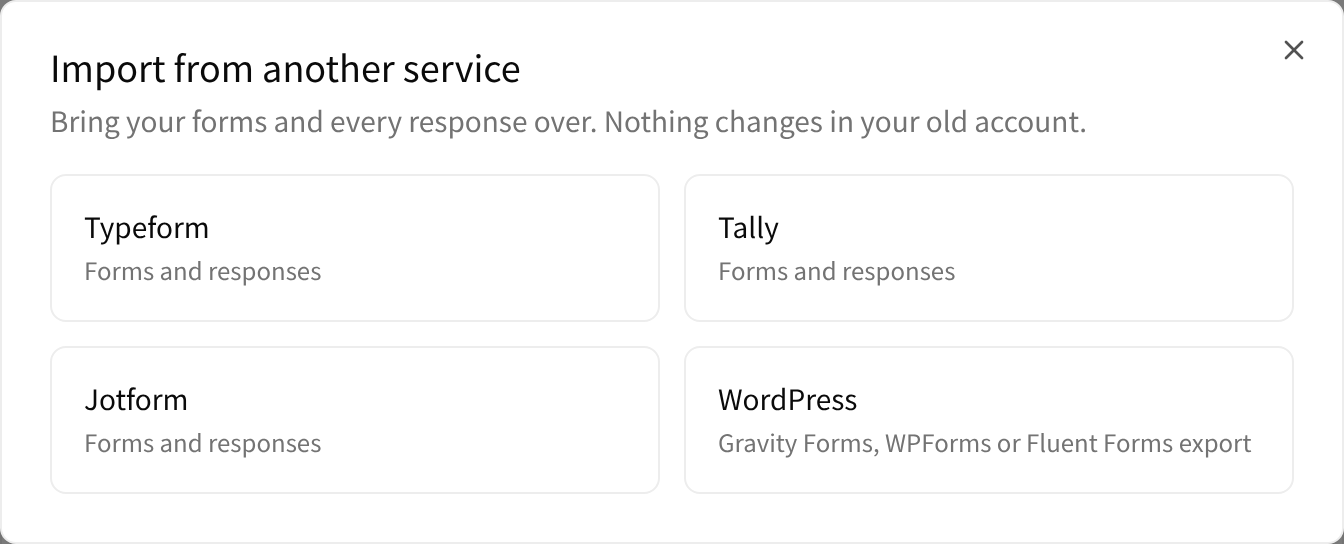
Where your forms can come from
Typeform, Tally and Jotform are read through their official APIs with a key you create in your own account. You paste it in, the import uses it, and it is deleted when the import ends.
WordPress sites don't have a central account to connect to, so for Gravity Forms, WPForms and Fluent Forms you upload the plugin's own export file instead, plus one entries CSV per form if you want the responses too.
Every service has its own guide: Import from Typeform, Import from Tally, Import from Jotform, and Import from WordPress.
Run an import
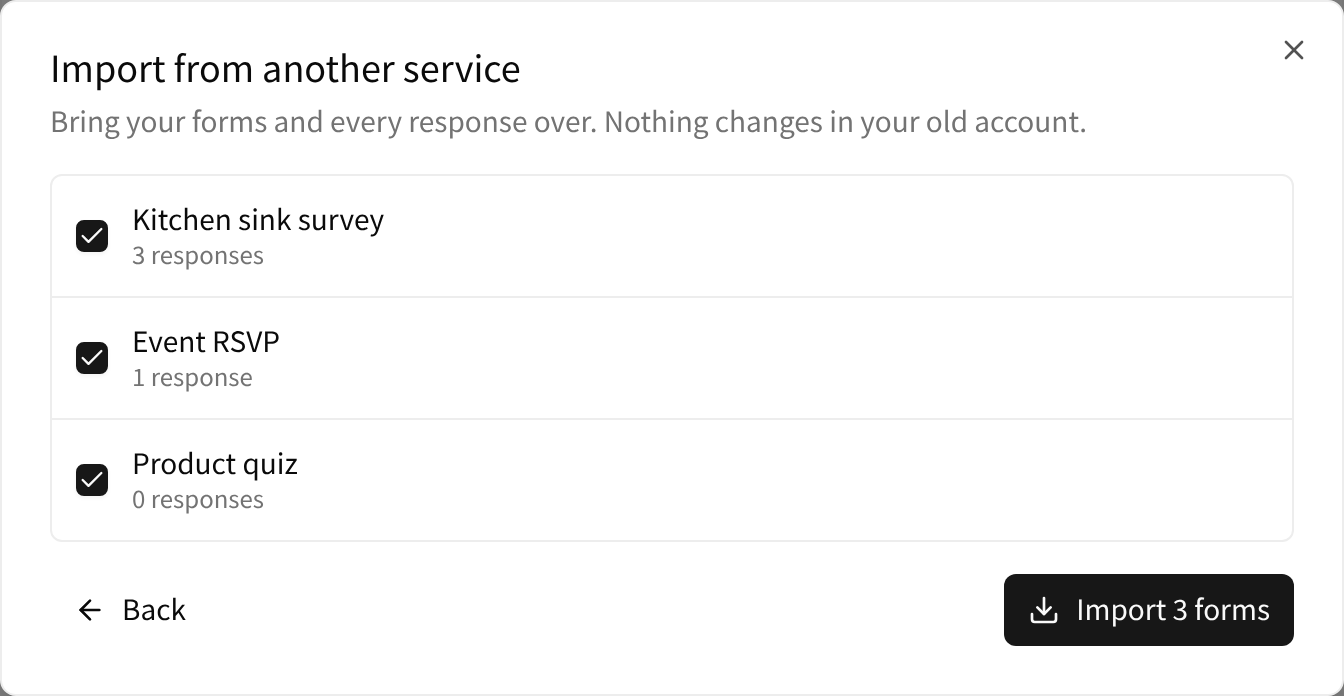
The import lists every form in the account, or in the file, and ticks them all for you. Untick any you'd rather leave behind.
- 1
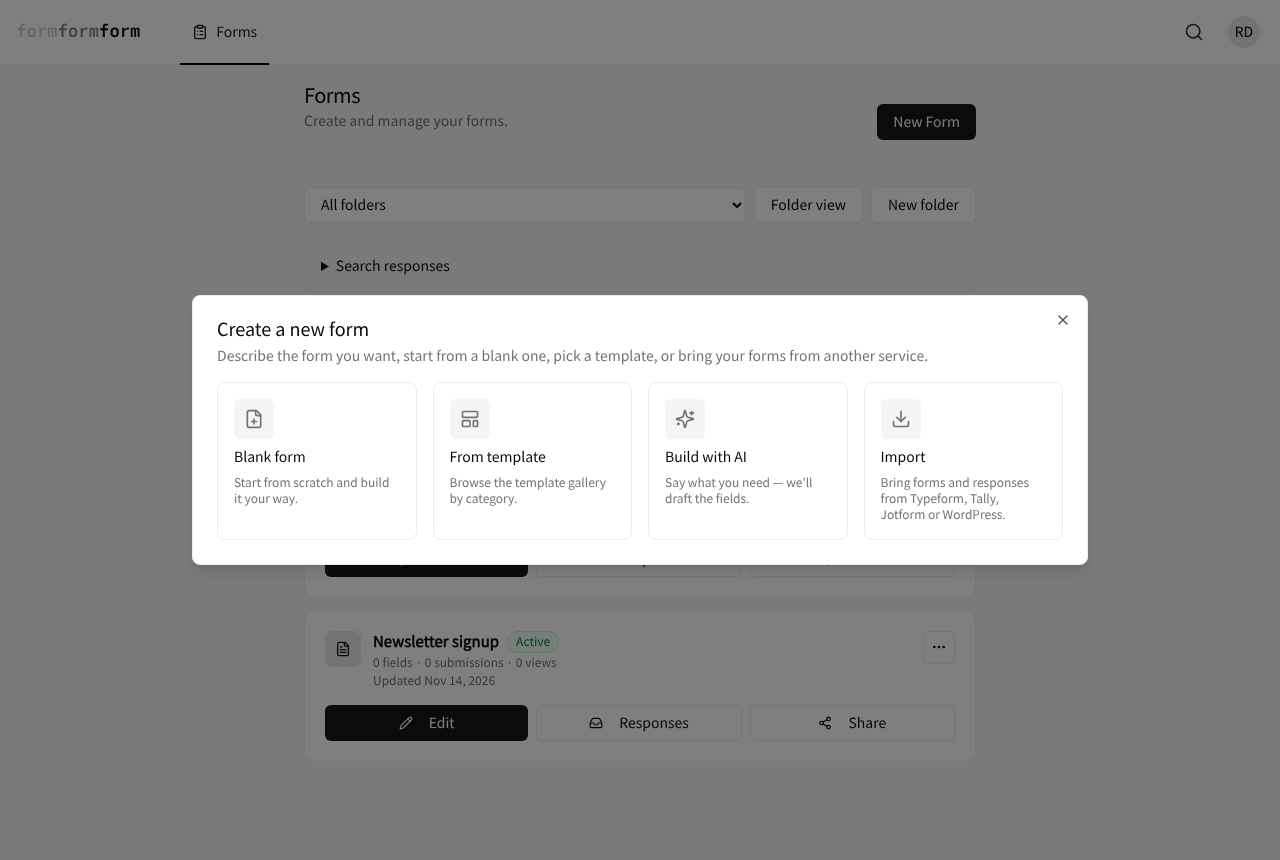
Open Forms and click New Form.
- 2
Choose Import, then the service your forms are in.
- 3
Paste your API key, or upload the export file for WordPress. For Typeform and Jotform, also say which data centre your account is in. If you're not sure, leave it on Standard.
- 4
Click Find my forms. Every form is listed with the number of responses it holds.
- 5
Leave ticked the forms you want, then click Import.
- 6
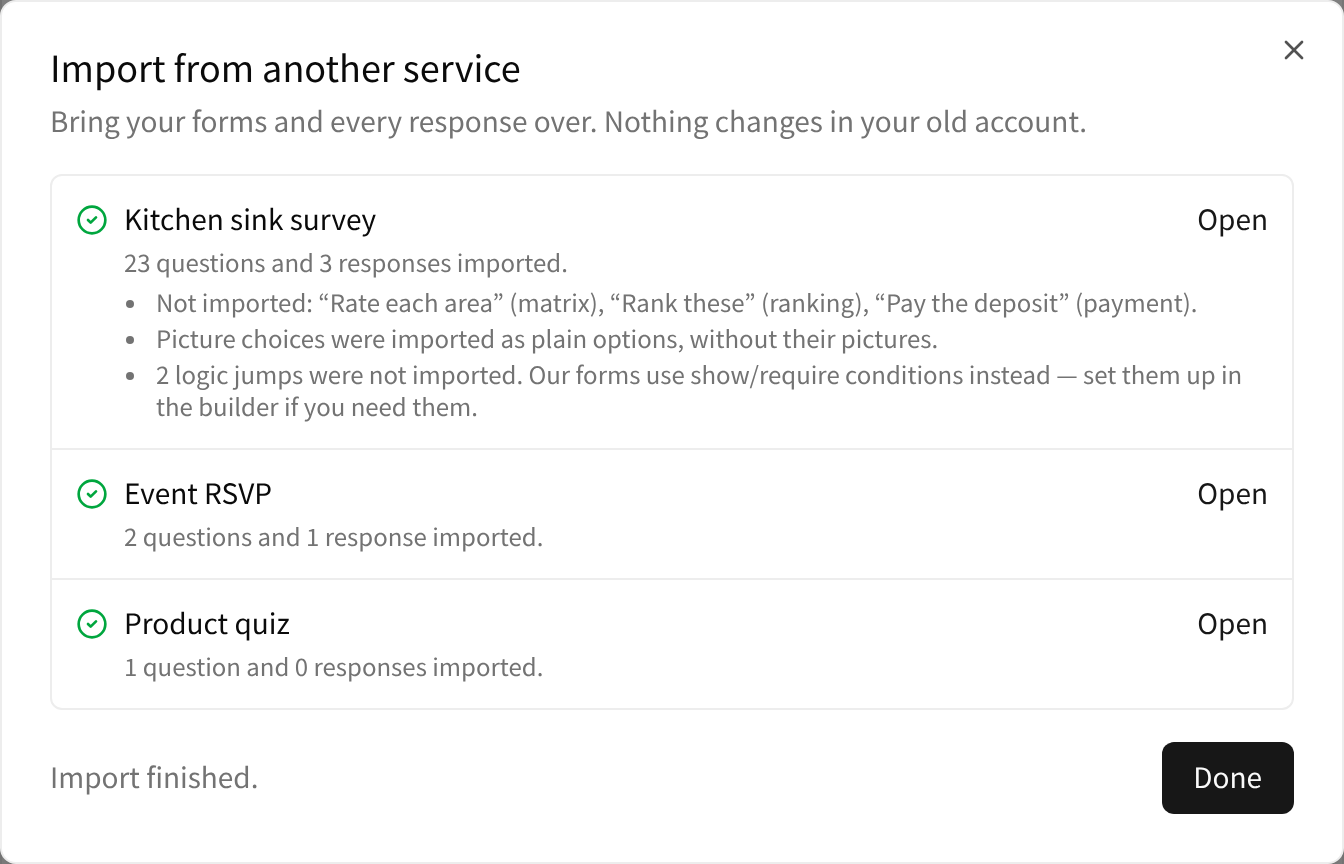
Watch each form finish. Open takes you straight to the imported form in the editor.
Read the summary for each form
Once a form is done, its line says how many questions and responses came over. Anything that couldn't be recreated is listed under it by name, so you know exactly what to rebuild. Nothing is dropped silently.
The usual items on that list are question types formformform doesn't have (matrix, ranking and payment questions), the old service's logic rules, and calculated fields. Logic is listed rather than converted because each service models it differently. formformform uses show and require conditions on the field itself, which take a minute to set up again in the editor.
What comes over
Questions arrive as their closest formformform field: text, email, phone, number, date, dropdown, radio, checkbox and file upload fields, along with headings, paragraphs, dividers and page breaks where the service has them. Ratings, opinion scales and NPS questions become radio choices with the same scale. A name or address question with several parts becomes one field per part, so each part can be searched and exported on its own.
Required questions stay required, and hidden fields stay hidden fields. Images are copied into formformform rather than linked back to the old service, so they keep working after you close that account.
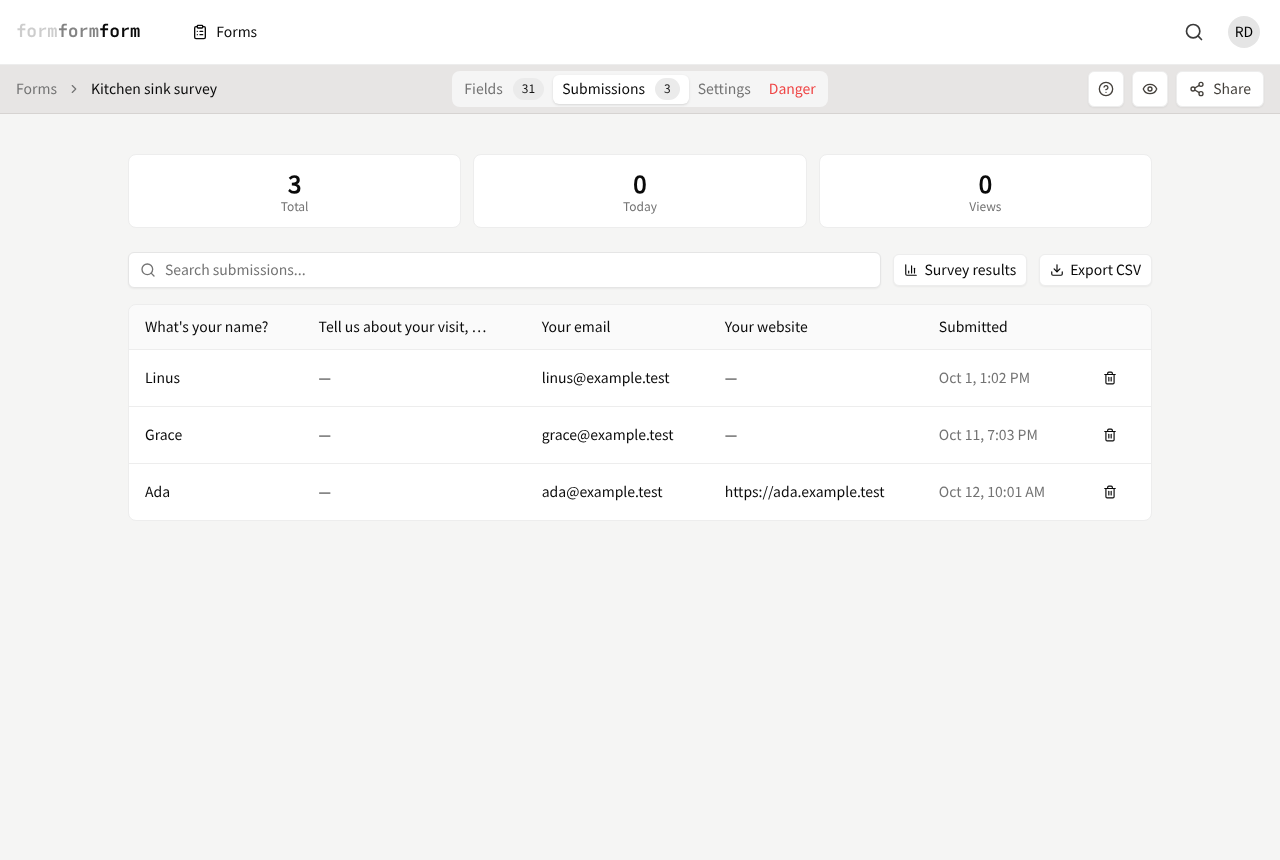
Responses keep the date they were originally submitted, so your response list and CSV exports read in the right order. Files that respondents uploaded are copied too, up to 10 MB each. WordPress is the one exception: there the entries CSV only holds links to the files.
Before you share the new form
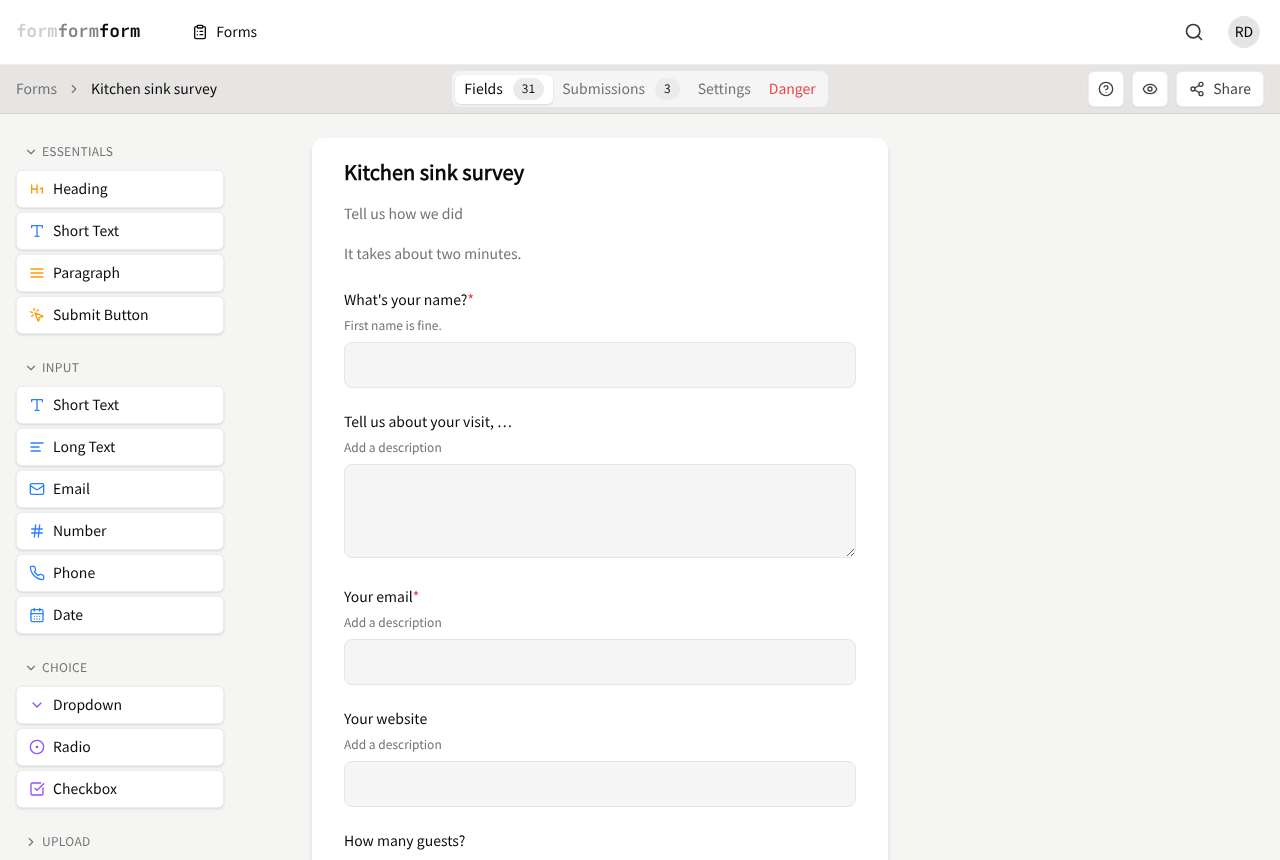
Each imported form is live at its own new formformform link as soon as it is created. The old link, and any embed on your website, still points at the old service. When you are ready to switch, look over the form in the editor, set up any conditions the summary listed, then replace the old link or embed code with the new one.
Importing old responses does not send email notifications, fire webhooks or trigger Zaps. Only responses submitted after the import do that.
Run it again to pick up new responses
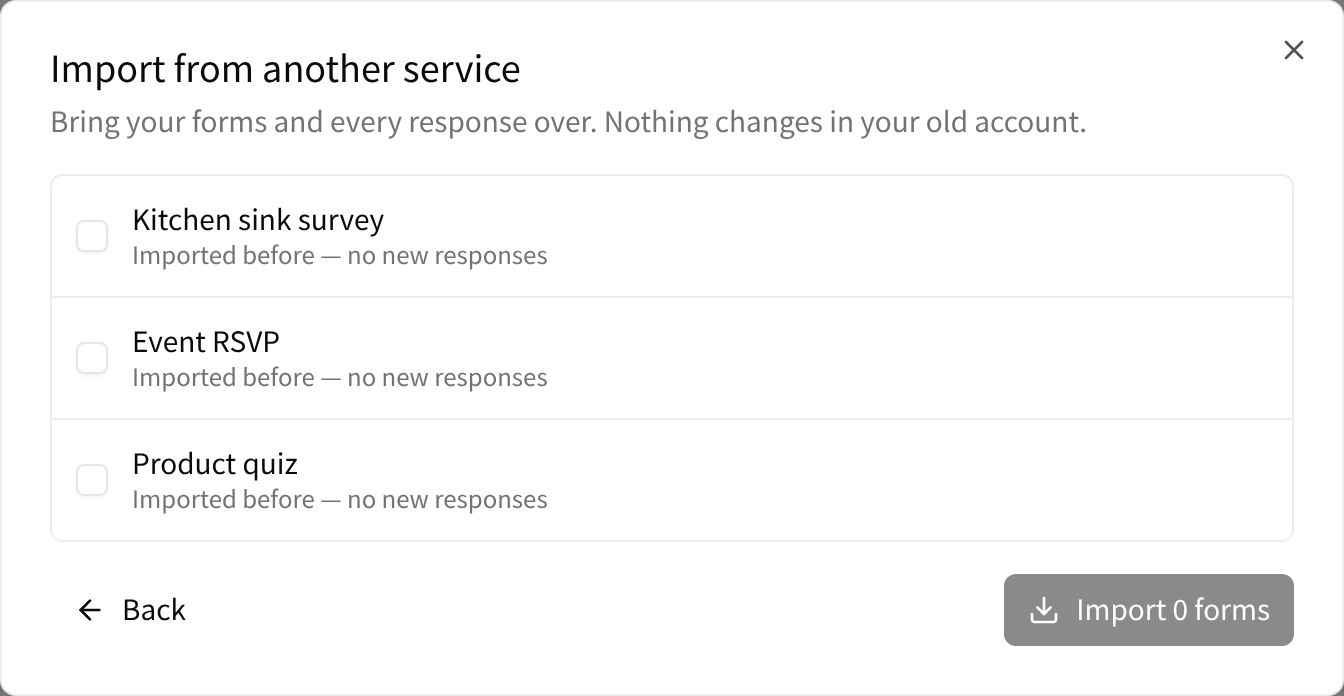
Your old form may keep collecting responses while you prepare the switch. Run the import again with the same key or file and each form you already imported is marked "Imported before", with a count of the responses it has gained since. Only forms with something new are ticked.
A second run adds the new responses to the form you already have. It doesn't create a duplicate form, doesn't copy a response twice, and leaves your edits to the questions alone.
Importing on the free plan
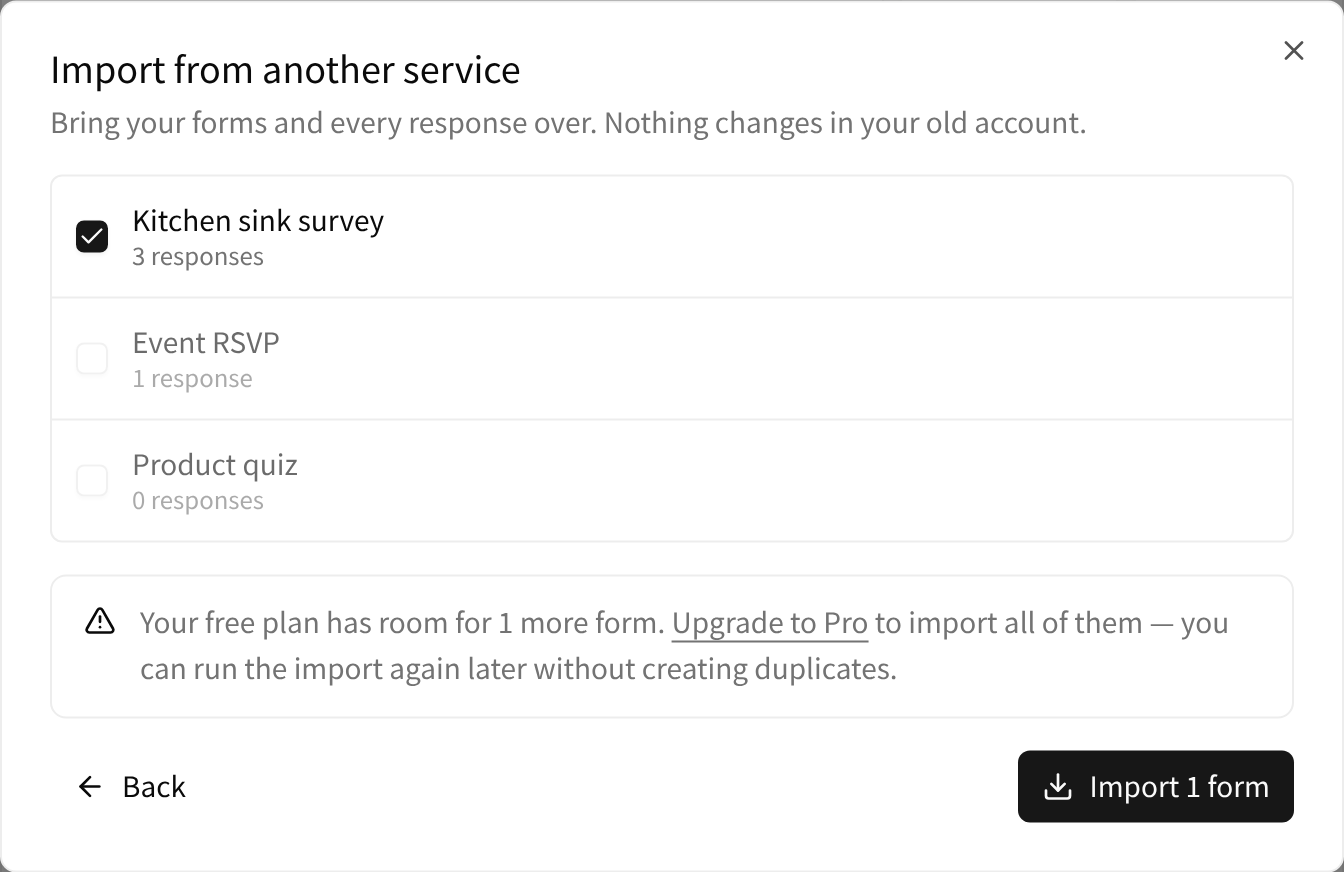
The free plan holds up to 10 forms, and an import fills the room you have left. If the account you're importing from has more, the import ticks as many as fit and greys out the rest. It also tells you how many slots are left.
Pro has no form limit, so an upgrade lets you import the rest. You can run the import again at any point without creating duplicates.
Frequently asked questions
Does importing change anything in my old account?
No. The import only reads. Your old forms, their links and their responses stay exactly as they were, and you close that account when you're ready.
What happens to my API key?
It is stored encrypted while the import runs and deleted the moment the import finishes, whether it succeeded or not. An import that never finishes is cleaned up within 24 hours, key included. You can delete the key in the old service as soon as the import is done.
Can I close the window while it runs?
Yes. The import runs on our servers, so closing the dialog doesn't stop it. Imported forms appear in your forms list as each one finishes.
Will my respondents get emails, or my Zaps run, for old responses?
No. Imported responses are added quietly: no notification emails, no webhooks, no Zapier triggers. Those only fire for responses submitted to the new form.
Can I import straight into an encrypted form?
No. An import creates ordinary forms, and imported responses are stored like any other unencrypted response. To collect new responses with end-to-end encryption, build an encrypted form.
Are payment questions imported?
No. Payment questions are listed in the summary as not imported. Payments in formformform are set up separately, through a hosted checkout after submission.
Related articles
- Import from Typeform
Create a Typeform personal access token, paste it in, and bring every typeform over with its responses.
- Import from Tally
Create a Tally API key, paste it in, and bring every Tally form over with its completed submissions.
- Import from Jotform
Create a read-only Jotform API key, choose your data centre, and bring every form over with its submissions.
- Import from WordPress: Gravity Forms, WPForms and Fluent Forms
Upload your plugin's form export, add each form's entries CSV, and move your WordPress forms and entries across.
- Show and hide fields with conditional logic
Add a rule to a field so it appears, or becomes required, only when an earlier answer calls for it.
Still need help? Contact our support team and tell us what you are trying to do.
Log in to your account