Import from Jotform
Jotform's account export gives you forms as web pages, which can't be rebuilt reliably. So the import reads your forms through Jotform's API instead, which describes every question properly. It then copies every submission and uploaded file across.
You need a read-only API key, and you need to know which Jotform data centre your account is in.
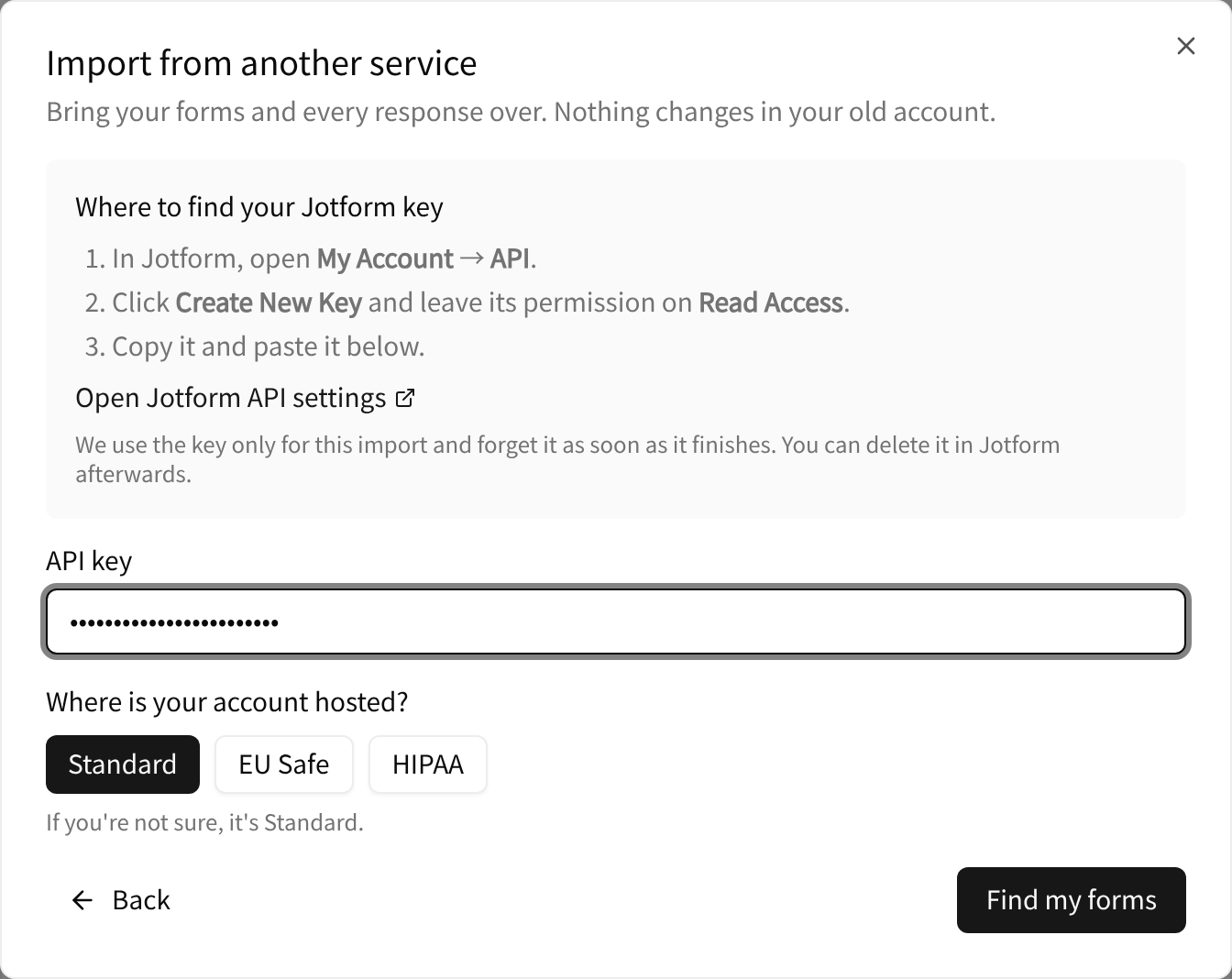
Create a read-only API key
A read-only key lets the import list your forms and read their submissions, and nothing more.
- 1
In Jotform, open My Account, then API.
- 2
Click Create New Key.
- 3
Leave its permission on Read Access. The import never needs to write.
- 4
Copy the key.
The dialog has a link that opens Jotform's API page directly. Delete the key there once the import is done.
Choose the right data centre
Jotform keeps accounts in three separate places, each with its own API: Standard, EU Safe for accounts on Jotform's EU servers, and HIPAA for HIPAA-compliant accounts. A key only works against its own data centre. If Find my forms says the key didn't work and you're sure you copied all of it, check this choice first.
- 1
In formformform, click New Form, choose Import, then Jotform.
- 2
Paste the key into API key.
- 3
Under "Where is your account hosted?", choose Standard, EU Safe or HIPAA.
- 4
Click Find my forms, untick anything you'd rather leave behind, and click Import.
formformform is not a HIPAA-compliant service. Think carefully before you move health information out of a HIPAA account.
How Jotform fields come over
Short text, long text, email, phone, number, spinner, date, birth date, dropdown, single choice, multiple choice and file upload fields become their formformform equivalent. Time fields become short text fields. Scale and star rating fields become radio choices covering the same range.
Full name fields become first and last name fields, and address fields become one field per line, so each part can be searched and exported on its own. Headings, text blocks, dividers, page breaks and images keep their place. Images are copied into formformform. Your thank-you text becomes the form's thank-you message.
Forms in your Jotform trash aren't offered, and submissions you deleted in Jotform aren't imported.
What you'll need to redo
Jotform conditions are counted in the summary, not converted. Set them up again as show or require conditions on the fields in the editor.
Widgets and fields formformform doesn't have, such as payment fields, are named in the summary and left out. Their answers are left out of the imported responses too. CAPTCHA fields and collapsible sections are skipped without a mention, because they don't collect answers.
Frequently asked questions
Why not use Jotform's account export?
Jotform's export holds each form as HTML and CSS. That shows what the form looked like but doesn't reliably say what each field is. The API does, which is why the import uses it.
Are uploaded files copied?
Yes. Files uploaded to a Jotform form are copied into formformform, up to 10 MB each. A file that can't be copied is counted in the summary.
Related articles
- Import your forms and responses from another service
Bring every form, and every response it has collected, over from Typeform, Tally, Jotform or a WordPress form plugin.
- Show and hide fields with conditional logic
Add a rule to a field so it appears, or becomes required, only when an earlier answer calls for it.
- Split a long form across pages
Add page breaks from the Layout palette to turn one long form into a short sequence of numbered steps.
- Collect file uploads
Add a File Upload field, then preview or download whatever people attach from the submission page.
- Import from Typeform
Create a Typeform personal access token, paste it in, and bring every typeform over with its responses.
Still need help? Contact our support team and tell us what you are trying to do.
Log in to your account