Popup, slide-in and inline embeds
formformform gives you one embed snippet per form. Where it lands — in the flow of your content, floating over the page in a dialog, or riding in from the edge — is decided by the markup you paste it into, not by a setting in the editor.
That is less restrictive than it sounds. The snippet is a single script tag with nothing to configure, so a lettings agency can run one viewing-request form inline on each property page and as a slide-in on the search results, with every reply arriving in the same Submissions tab.
Copy the snippet
The snippet is generated per form, so open the form you actually want on the page. Share sits in the top bar of the editor, to the right of the help and preview buttons, and stays there whichever of the four tabs you are on — Fields, Submissions, Settings or Danger.
The dialog opens on the QR code tab, with the public link and a copy button across the top. Both embed snippets are one tab across.
- 1
Open the form in the editor and click Share in the top right.
- 2
Click the Embed tab, the middle one between QR code and Developer.
- 3
Under "Embed on your website", click the copy icon in the corner of the dark code block. That is the script tag — one line, no options to set.
- 4
Paste it into your page's HTML.
- 5
If there is no green Online badge beside the form's name in the dialog, go to the Settings tab, open the Notifications sub-tab, switch on "Form is accepting submissions" and click Save Changes.
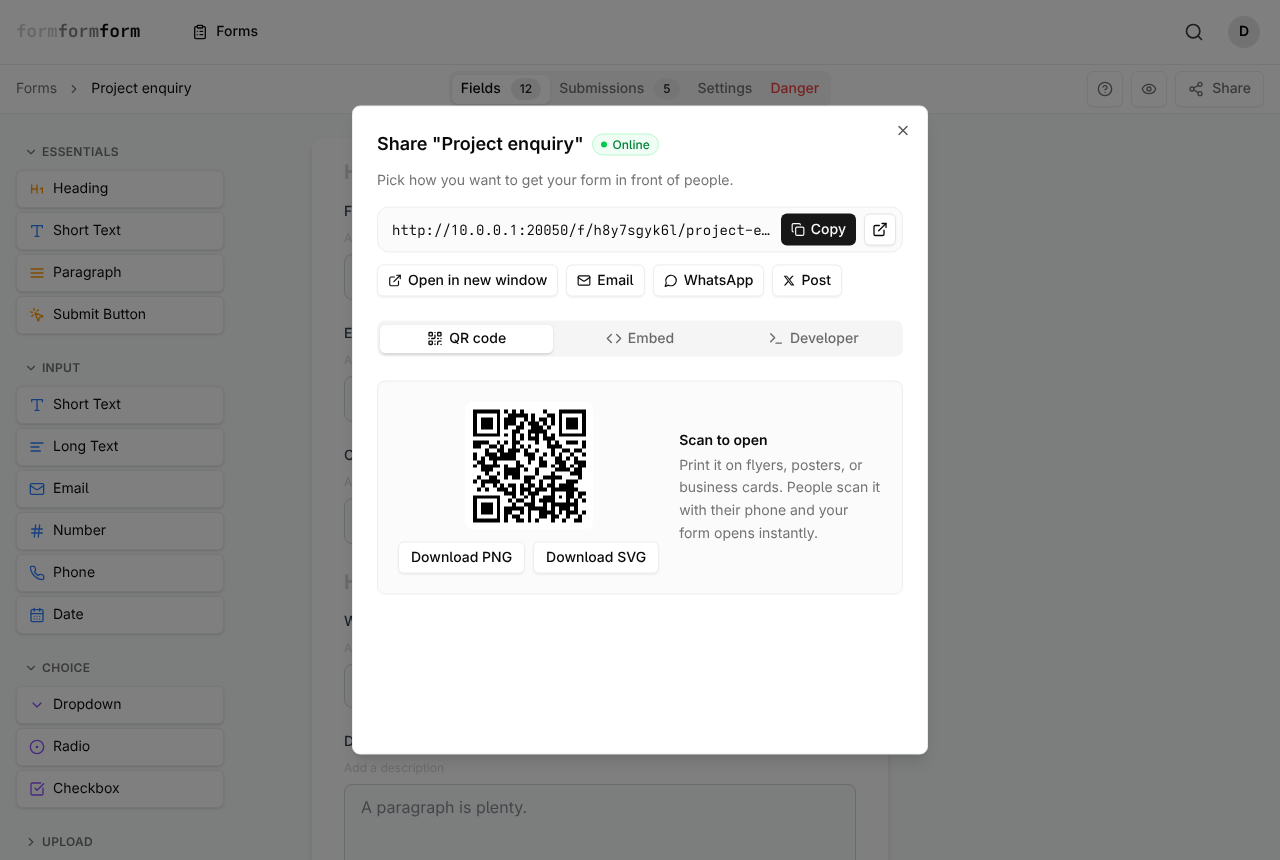
The script is served only while the form is accepting submissions. Switch that off and the address answers 404, so the form vanishes from every page carrying the snippet and leaves nothing in its place.
Inline: the tag's position is the form's position
The script builds its own container and inserts it immediately before its own tag. Put the tag inside the column, card or content block that should hold the form and it renders there, with no wrapper of yours needed.
What appears is enclosed in a shadow root with its own stylesheet, capped at 640 pixels wide and centred in whatever space you give it. Your CSS cannot reach in to restyle the fields, and the form's styles cannot bleed out over the rest of the page.
That isolation is total, so your typeface and brand colours do not carry into the form either. Where matching the surrounding design matters more than keeping people on the page, send the plain link instead.
Popup: the snippet inside a dialog
There is no popup switch to hunt for. The overlay is markup you own, and the browser's native dialog element supplies the backdrop, the focus trap and Esc-to-close with no library involved.
A photography studio wanting a "Check my dates" button on every gallery page needs about six lines around the same snippet already sitting on its contact page.
- 1
Add a dialog element to your page and paste the script tag inside it.
- 2
Add the button that opens it wherever it belongs in your content.
- 3
In that button's click handler, call showModal() on the dialog.
- 4
Add a close button inside the dialog that calls close().
- 5
Give the dialog room for 640 pixels of width, or the form will render narrower than it was designed to.
The script runs when the browser parses the page, not when the dialog opens, so the form is fetched and built up front. Opening it feels instant; the request also goes out for visitors who never click.
Slide-in: the same snippet pinned to an edge
A slide-in is that popup with different CSS — a fixed-position panel, parked off-screen with a transform, brought in when your trigger fires. Around 400 pixels of width reads well on a desktop, and the form centres itself inside it.
On a phone, a panel wide enough to type in covers the whole screen, which is a popup with extra animation. Hiding the panel below your mobile breakpoint and offering the form link there instead is usually the kinder call.
Nothing inside the embed dismisses anything. The panel needs its own close control, reachable by keyboard — the shadow root will not supply one.
When to swap the script for the iframe
The script embed rebuilds your form from a short description of its fields, and three things do not survive the trip. A File Upload field falls back to a plain text box, so nothing can be attached. Page breaks are dropped, turning a multi-page form into one long scroll. Conditional logic is not evaluated, so show and require rules are ignored and every field is visible to everyone.
The second snippet on the same Embed tab is an iframe pointed at the hosted form, which behaves exactly as the public link does. It goes inside a dialog or a slide-in panel just as happily as the script tag. It ships 600 pixels tall and does not grow to fit, so raise that number until your longest page fits.
Uploads are capped at 2 MB per file. An encrypted form has to use the iframe: the encryption happens in the visitor's own browser on the hosted page, the server refuses plaintext from an encrypted form outright, and responses cannot be recovered without the key.
Frequently asked questions
How do I make the popup open on a delay or when someone is leaving?
Timing is decided by your page rather than by the editor. The snippet only renders the form; your code decides when the container holding it becomes visible. A click handler, a scroll listener and a timer all work the same way, because each is just showing the element the snippet already sits in.
Can two different forms pop up on the same page?
Yes. Each script tag creates its own container and its own shadow root, and posts to its own form, so they do not interfere. Give each dialog a distinct id so your triggers open the right one.
Do popup submissions show up separately from inline ones?
No. Placement is not recorded anywhere — every submission for a form lands in one list on that form's Submissions tab, whatever container it came from. If you need to tell the pages apart, add a Hidden field from the Layout section of the palette and set a different value per page.
Related articles
- Embed a form in your website
Paste one script tag to draw your form into any page, or use the iframe where scripts are stripped.
- Publish a form and get its link
A form is live the moment you create it — how to check it, copy its link, and close it again.
- Collect file uploads
Add a File Upload field, then preview or download whatever people attach from the submission page.
- Hidden fields and prefilled values
Tag each response with where it came from, and start visible fields off with a value already in the box.
- Share a form by link
Every form has a public link from the day it is created — here is where to find it and how to send it.
Nothing here answering your question? The editor is quick enough that trying it is often faster than reading about it.
Open the editor