Embed a form in your website
An embedded form sits on your own page. Visitors never leave your site, and the response lands in that form's Submissions tab alongside everything else.
There are two ways to do it, and both are one copy away in the Share dialog. The script embed draws the form directly into your markup. The iframe loads the hosted form inside a frame, and it is the one to reach for when your platform strips JavaScript out of your HTML.
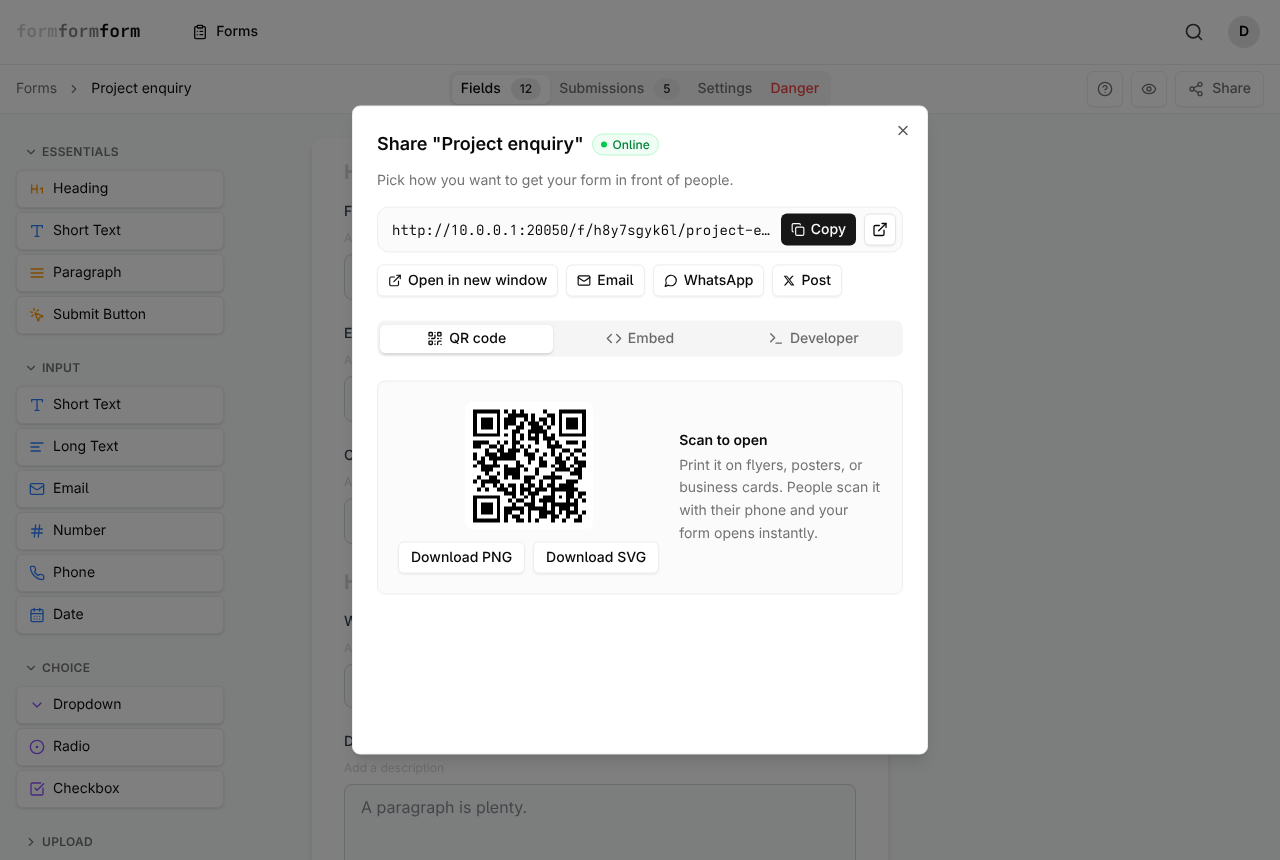
Copy the snippet
Each snippet is generated for the one form you have open, so start there. The Share button sits in the top bar of the editor, to the right of the preview eye.
A green Online badge next to the form's name in the dialog means the form is accepting submissions. Without that badge, neither snippet will load anything.
- 1
Open the form in the editor and click Share in the top right.
- 2
The dialog opens on the QR code tab. Click Embed.
- 3
Under "Embed on your website", click the copy icon in the corner of the dark code block. That is the script embed, and it is a single line.
- 4
For the iframe, copy the second block instead, the one headed Iframe.
- 5
If there is no Online badge, close the dialog, open the Settings tab, then the Notifications sub-tab, switch on "Form is accepting submissions" and click Save Changes.
Both the script and the form's field data are served only while the form is accepting submissions. Turn that switch off and the embed renders nothing — visitors see an empty gap rather than an error.
Paste it where the form should appear
The script inserts the form immediately before its own tag, so the position of the tag in your HTML is the position of the form on the page. Drop it inside the section, column or content block that should hold it, not at the foot of the document.
The form then renders inside a shadow root with its own stylesheet. Your site's CSS cannot reach into it, and the form's styles cannot leak out onto the rest of your page — worth knowing if you were planning to restyle the fields from your own stylesheet. Inside that root the form is capped at 640 pixels wide and centres itself in whatever space you give it.
Some hosted site builders sanitise HTML when you save and quietly delete script tags. If the form does not appear and the tag has gone when you reopen the editor, that is what happened. Use the iframe there.
When to use the iframe instead
The second snippet points a frame at the form's own public address, so what loads inside it is exactly the page people would see if you had sent them the link. Anything the hosted form can do works in the frame.
It ships with a height of 600 pixels. The frame does not grow to fit its contents, so a long form scrolls inside the box. Raise that number until the form fits, or leave it and accept an inner scrollbar.
A form on the free plan carries a "Powered by formformform" footer on its hosted page, so the iframe shows that footer too. The script embed renders no footer of its own.
What the script embed leaves behind
The script embed is a compact renderer rather than the whole form, and four things do not make the trip. Each is a reason to use the iframe, or a plain link, for that form.
File upload fields have no control in the script embed, so nothing can be attached. Page breaks are ignored, which turns a multi-page form into one long column. Conditional logic is not applied either: show and require rules stay behind, and every field is visible to everyone who loads the page. Encrypted forms are the firm one, because the encryption happens in the visitor's own browser on the hosted page.
An encrypted form cannot be submitted through the script embed at all — the server refuses plaintext from an encrypted form by design. Embed those with the iframe, which loads the real page and encrypts in the visitor's browser.
Frequently asked questions
Do I have to add my domain to an allowlist first?
No. The form data is served with an open cross-origin header, so the snippet works on any domain and on as many pages as you like. Submissions from every copy land in the same form's Submissions tab.
If I edit the form, do I have to paste the code again?
No. The snippet only carries the form's address. Fields are fetched fresh each time someone loads your page, so a field you add this afternoon shows up in the embed on the next reload.
Do file uploads work in an embedded form?
Through the iframe, yes: up to 2 MB per file, and on an encrypted form the file is encrypted in the visitor's browser before it uploads. The script embed has no upload control, so a form with an Upload field needs the iframe or the plain link.
Related articles
- Publish a form and get its link
A form is live the moment you create it — how to check it, copy its link, and close it again.
- Share a form by link
Every form has a public link from the day it is created — here is where to find it and how to send it.
- Popup, slide-in and inline embeds
The same embed snippet sits inline, inside a dialog, or in a panel — the container is yours to build.
- Collect file uploads
Add a File Upload field, then preview or download whatever people attach from the submission page.
- Print a QR code for your form
Download your form's QR code as PNG or SVG, print it at a size that scans, and keep it working.
Nothing here answering your question? The editor is quick enough that trying it is often faster than reading about it.
Open the editor