Publish a form and get its link
There is no Publish button to press. A form has a public address from the moment it exists: /f/, a short id, and a slug made from the title. Nothing waits behind a draft state for your approval.
Publishing here is really three smaller jobs — read the form the way a visitor will, copy the address out of the Share dialog, and decide when the form stops taking answers.
Where the link comes from
An address looks like /f/h8y7sgyk6l/project-enquiry. The first segment is a short id fixed to the form for good; the second is a slug generated from the title. You can read the whole thing in the Settings tab under General, next to Public URL.
Rename the form and the slug follows the new title. Older links keep working — anyone opening the previous address is redirected to the current one, so a URL you printed in March still lands on the right form in August.
The slug is generated, not typed: there is no field for editing it by hand. If you want a particular address, change the form's title and save.
Read it once as a visitor
The preview is not a mock-up. It loads the real public page in a frame, with the same required-field markers and the same submit behaviour a stranger gets.
- 1
Open the Fields tab and go through the form top to bottom. Every label is visitor-facing, so anything still reading "Untitled field" needs a name.
- 2
Check the form ends with a Submit Button — it sits in the palette under Essentials, and again under Layout. The editor will not let you delete the last one.
- 3
If you are collecting attachments, look at the file field from the Upload section. It accepts 2 MB per file, so say what you want in its caption rather than letting someone try a 30 MB video.
- 4
Click the eye icon at the top right, beside Share, to open Form Preview.
- 5
Fill it in quickly and carelessly, the way a busy person would, and fix whatever trips you up. Field edits save themselves as you make them — a small "Field updated" confirmation appears each time.
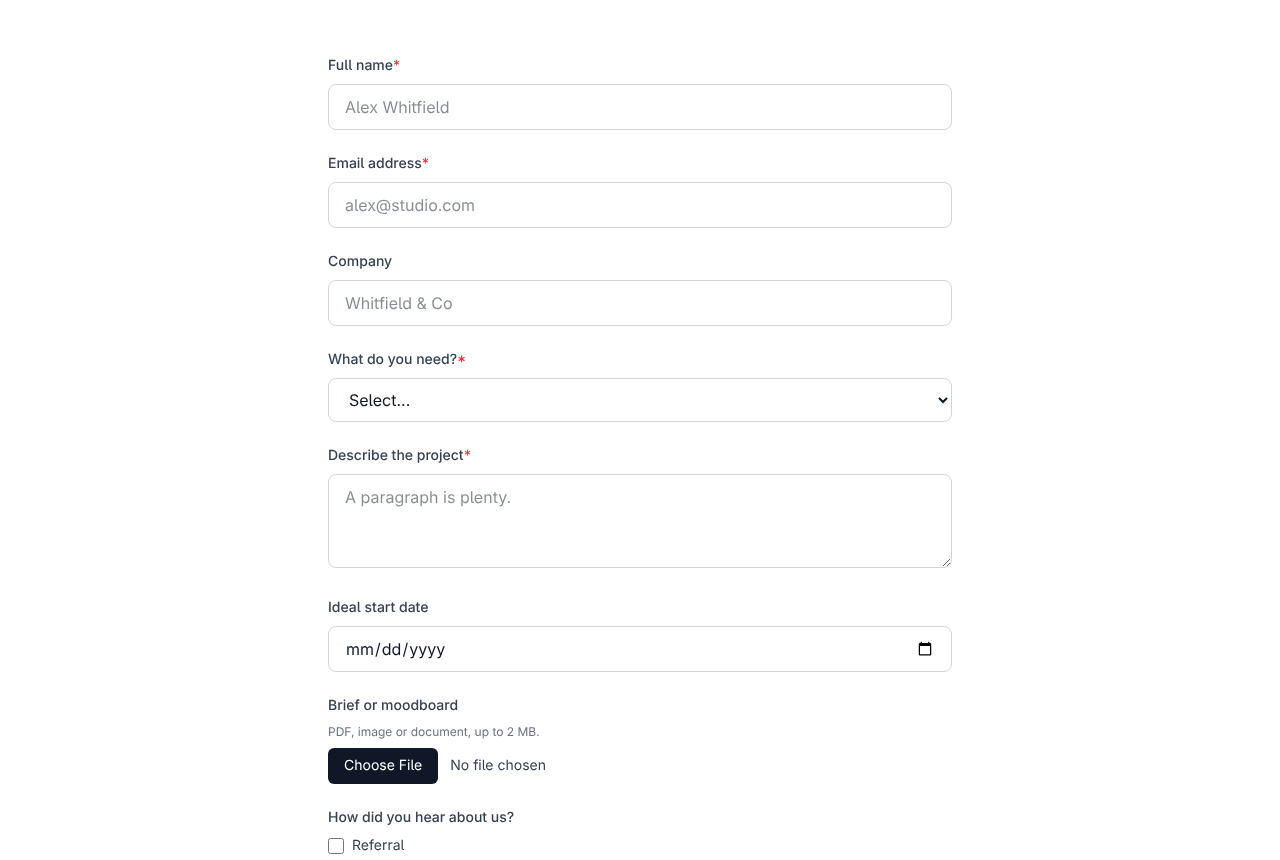
Anything you submit from the preview is a genuine response and lands in the Submissions tab with the rest. Delete your test before you start counting replies.
Copy the link and send it
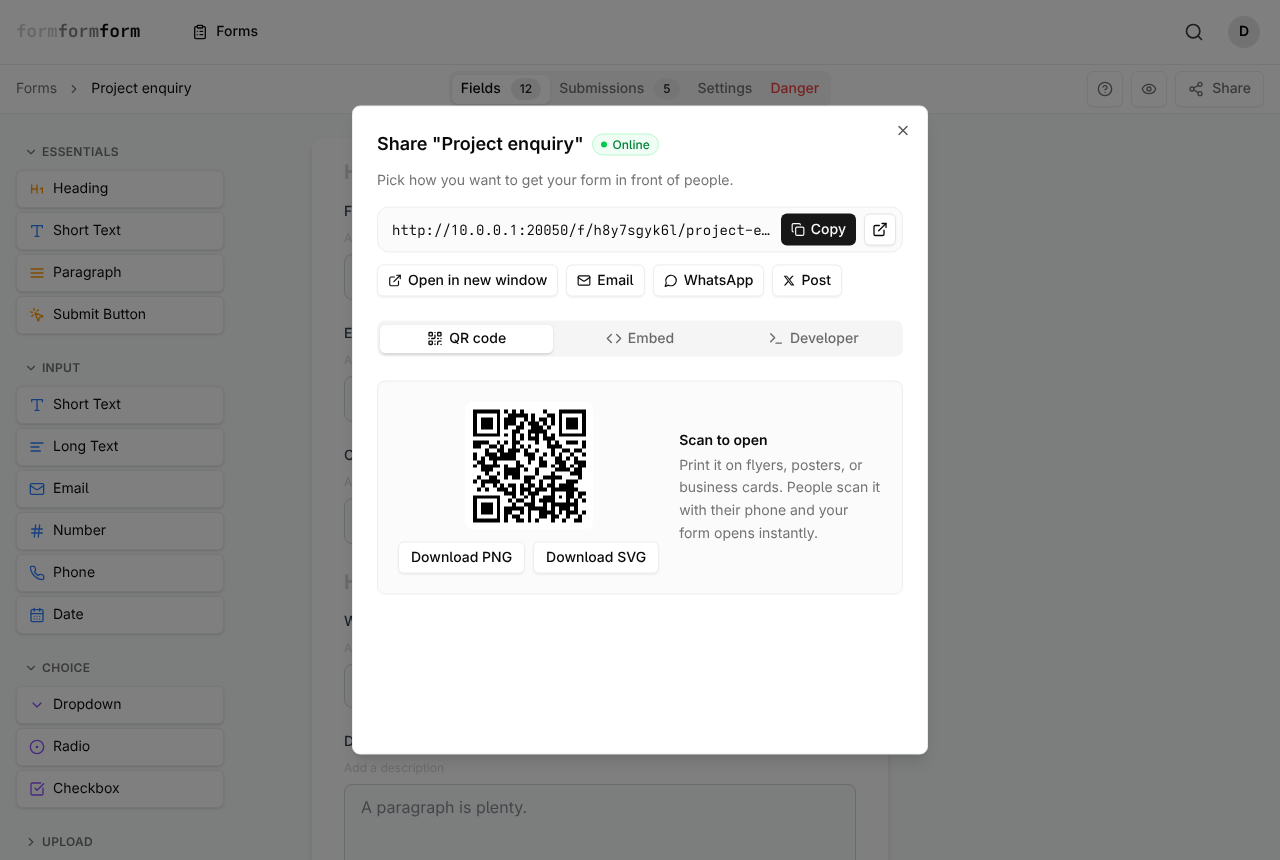
The Share button in the top-right corner of the editor holds every way of distributing the form. The same dialog sits on each card in your forms list, so fetching a URL never means opening the editor.
- 1
Click Share. A green Online badge next to the form's name means it is accepting submissions right now.
- 2
Press Copy beside the URL, or use the arrow button to open the form in a new tab and check it once more in the wild.
- 3
For one-tap sending, use Email, WhatsApp or Post — each opens with the link and the form's title already filled in.
- 4
For a printed sheet, poster or window sticker, stay on the QR code tab and choose Download PNG or Download SVG. Take the SVG if it is going anywhere larger than A4.
- 5
For your own website, switch to the Embed tab and copy either the one-line script or the iframe snippet. The Developer tab holds a curl command that runs the form in a terminal.
If encryption is switched on, make sure you still have the private key before the link goes out. Answers are encrypted in the visitor's browser, and without that key nobody — us included — can read them back.
Close the form when you are done
Applications close and events fill up, and a form still collecting after the deadline makes work rather than saving it. One switch handles that, reversibly.
- 1
Open the Settings tab in the editor.
- 2
Go to the Notifications sub-tab.
- 3
Turn off "Form is accepting submissions".
- 4
Press Save Changes. Flip the same switch back on when you want the form live again.
While that switch is off the public link stops resolving — visitors get a not-found page, and any embed of the form stops loading too. Responses already collected are untouched and stay in the Submissions tab.
Frequently asked questions
Do I have to publish a form before anyone can fill it in?
No. The public link works from the moment the form is created. If you would rather build in private, turn off "Form is accepting submissions" in Settings and turn it back on when you are ready.
Will my link break if I rename the form?
No. The slug in the URL updates to match the new title, and the old address redirects to the new one. Links already sent, printed or embedded carry on working.
Do people need an account to fill in my form?
No. The form page is public — anyone with the link, the QR code or the embed can complete it without signing in or creating anything. An account is only needed to build forms and read the responses.
Related articles
- How the form editor works
The editor has three parts — palette, form, field settings — and edits to fields save as you make them.
- Share a form by link
Every form has a public link from the day it is created — here is where to find it and how to send it.
- Print a QR code for your form
Download your form's QR code as PNG or SVG, print it at a size that scans, and keep it working.
- Embed a form in your website
Paste one script tag to draw your form into any page, or use the iframe where scripts are stripped.
- Create your first form
From the New Form button to a link worth sending, in four passes through the editor.
Nothing here answering your question? The editor is quick enough that trying it is often faster than reading about it.
Open the editor