Share a form by link
A form is live as soon as it exists. There is no separate publishing step before the address works, and the address does not change as you add fields, so you can hand it out early and keep editing behind it.
That address lives in the Share dialog, alongside the QR code, the embed snippets and a terminal command — but the link at the top is what most people open it for.
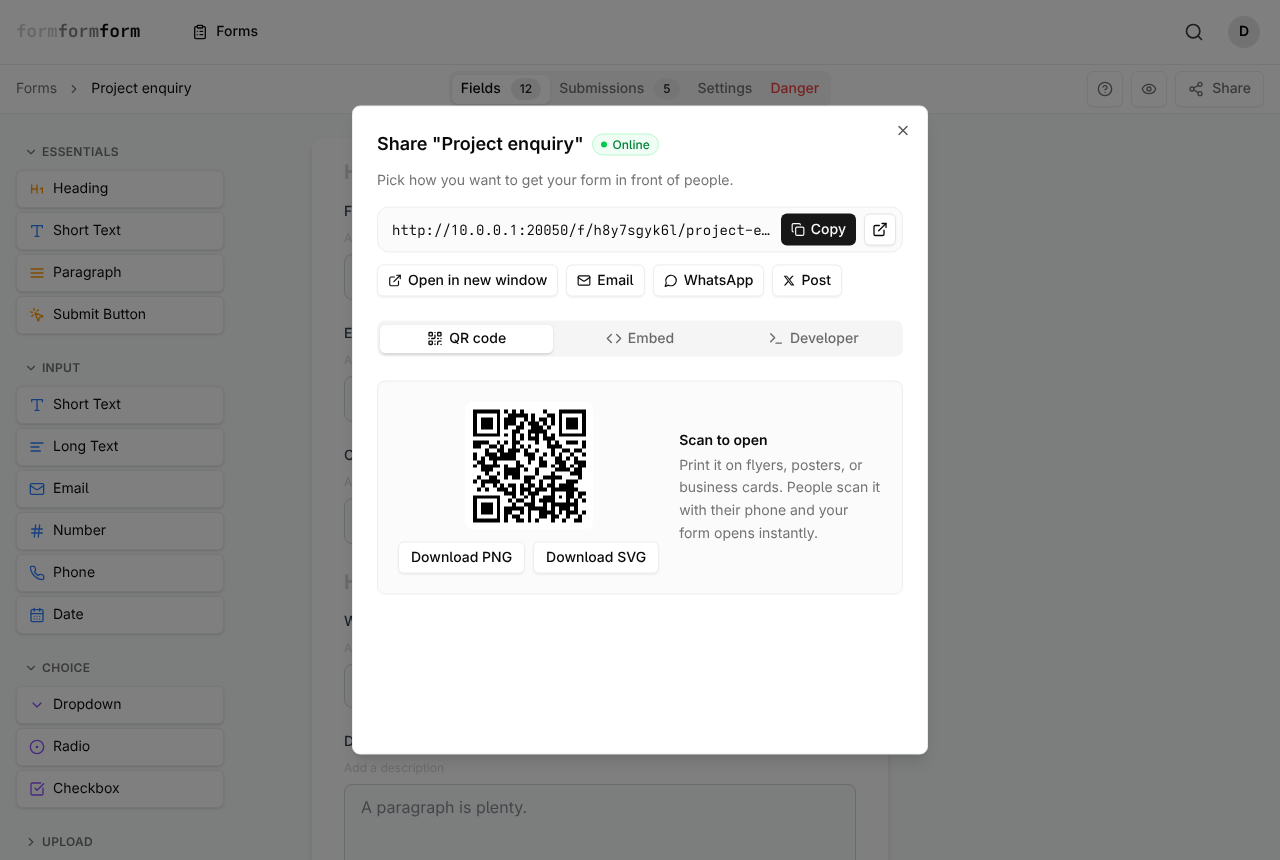
Find the link and copy it
Two routes reach the same dialog. On the Forms list, every card carries three buttons — Edit, Responses and Share — so you can grab a link without loading the editor. Inside the editor, Share sits in the top right, after the question-mark and preview buttons.
The link appears first in the dialog, in monospace, with Copy beside it and a small arrow button after that. The arrow opens the real public form, which counts as a view on the Submissions tab; the preview button does not, because it loads the form in preview mode.
- 1
Open Forms and find the form you want to send out.
- 2
Click Share on the form card, or open the form and click Share in the top right of the editor.
- 3
Click Copy next to the link. The button swaps to a tick once the link is on your clipboard.
- 4
Click the arrow button beside Copy to open the live form and read it as a respondent will.
The green Online badge beside the form title only appears while the form is accepting submissions. With that switch off — Settings tab, Notifications, "Form is accepting submissions" — the link returns a not-found page rather than a closed-form message.
Send it without copy and paste
Below the link is a row of shortcuts: Open in new window, Email, WhatsApp and Post. Email opens a draft in your mail client with the form title as the subject and the link in the body; WhatsApp and Post hand the same message to those apps. It saves the copy-and-paste shuffle when one form is going to one person.
On a phone or tablet a fifth button appears, labelled Share…, which passes the link to the operating system's own share sheet.
Share… is only rendered by browsers that support a native share sheet. On most desktop browsers it is simply absent — use Copy instead.
What the link is made of
A form address reads /f/h8y7sgyk6l/project-enquiry. The middle segment is the form's public id, generated once when the form is created and fixed from then on. The tail is a slug built from the title.
Rename the form and the slug regenerates when you save. Links already in circulation keep working: a request carrying a stale slug, or no slug at all, redirects to the current address. The full URL is shown in the Settings tab under General, labelled Public URL.
The link is unguessable but it is not private: anyone holding it can open the form and submit an answer, and a form link cannot be password-protected. For sensitive intake, turn on encryption in the Settings tab so answers are sealed in the respondent's browser. Keep the private key safe — responses to an encrypted form cannot be recovered without it.
Tell your shared links apart
When the same form goes out in a newsletter, a Slack message and a printed flyer, a hidden field records which one brought each response.
A Hidden field takes its value from the URL query string, and its label is the parameter name. A field labelled source is filled by adding ?source=newsletter to the link. The value is stored with the submission, shows beside the answers in the Submissions tab, and exports with everything else.
- 1
In the Fields tab, expand Layout in the palette on the left and click Hidden. The field is added straight away.
- 2
Click the new field in the document — it shows as "Hidden: Hidden field" — and set Label to source in the Field Properties panel on the right.
- 3
Copy the form link from the Share dialog.
- 4
Add ?source=newsletter to the end, changing the value for each place you post it.
Only Hidden fields read from the URL; ordinary fields ignore query parameters. The parameter name must match the label exactly, capitals included. Anything in a link is visible to whoever receives it, so use it for campaign names, not for anything private.
Frequently asked questions
Do I have to publish the form before I send the link?
No. A new form accepts submissions from the moment it is created, and the Online badge in the Share dialog confirms it. To hold it back, switch off "Form is accepting submissions" in the Settings tab under Notifications, then switch it on when you are ready.
Will the link break if I rename the form?
No. The slug at the end of the URL regenerates from the new title when you save, and older addresses redirect to the current one. The form is resolved by the public id in the middle of the URL, and that never changes.
Can people attach files through a shared link?
Yes, if the form has a File Upload field — the single item under Upload in the palette. Each file must be 2 MB or smaller. On an encrypted form uploads are encrypted alongside the answers and decrypted in your browser when you open the submission.
Related articles
- Publish a form and get its link
A form is live the moment you create it — how to check it, copy its link, and close it again.
- Print a QR code for your form
Download your form's QR code as PNG or SVG, print it at a size that scans, and keep it working.
- Embed a form in your website
Paste one script tag to draw your form into any page, or use the iframe where scripts are stripped.
- Hidden fields and prefilled values
Tag each response with where it came from, and start visible fields off with a value already in the box.
- Popup, slide-in and inline embeds
The same embed snippet sits inline, inside a dialog, or in a panel — the container is yours to build.
Nothing here answering your question? The editor is quick enough that trying it is often faster than reading about it.
Open the editor