Thank-you messages and redirects
A form does not end at the submit button. The last thing a respondent sees is either a short confirmation where the form used to be, or a jump to a page you choose. Both are set in the same panel.
Every form arrives with a working default — "Thank you for your submission!" — so nothing is broken if you never open these settings. They are worth opening when you want to tell people what happens next, or when the next step already lives on your own site.
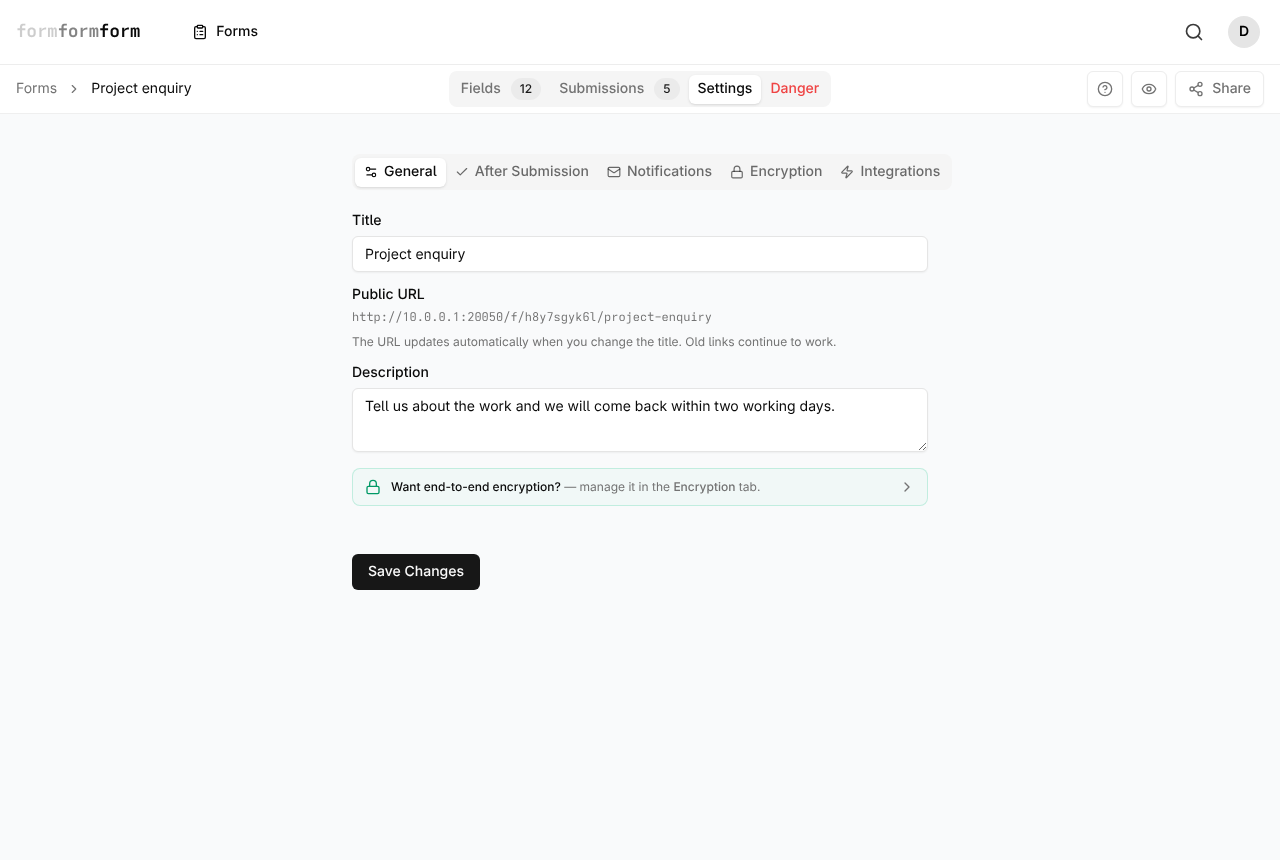
Write the thank-you message
The message takes the place of the form once a submission goes through. On the hosted form page the visitor sees a green tick, your text as the heading, and a small "Submit another response" link underneath.
Keep it concrete. A project enquiry form that ends with "Thanks — we read enquiries every morning and reply within two working days" saves you the follow-up email asking whether the form actually worked.
- 1
Open the form and click the Settings tab in the bar at the top, alongside Fields, Submissions and Danger.
- 2
Choose the After Submission sub-tab.
- 3
Type your text into Thank you message. Leave it empty to keep the default wording.
- 4
Click Save Changes at the bottom of the panel.
The message is plain text, up to 2,000 characters. Bold text, links and line-break formatting are not rendered, so a pasted URL shows as text rather than something clickable. If people need to click through, use a redirect.
Send people to a page instead
A redirect replaces the confirmation entirely. The moment the submission is saved, the browser leaves the form and loads the address you typed — a booking calendar, a "what happens next" page, a download, or the thank-you page you already measure conversions on.
Redirect URL sits directly under Thank you message in the same sub-tab. When it is filled in, it wins: your message stays saved but is never shown. Clear the field and the message comes back.
Redirect URL has to be a full address beginning with http:// or https://, and no longer than 500 characters. A relative path such as /thanks is rejected when you save.
Test it with a real submission
The eye icon in the header previews the form, but only a genuine submission proves the ending works. Send one through and watch where you land.
- 1
Copy the public link from the Share button in the header, or from Public URL under Settings, General.
- 2
Open the link in a new tab, fill the form in and submit it.
- 3
Check the result: your message on the page, or your own address in the address bar.
- 4
Go to the Submissions tab, hover the test response, click the bin icon and confirm the Delete? prompt.
A test submission is a real one. It lands in Submissions, and it fires whatever you have switched on under the Notifications sub-tab as well as any webhook or Zap connected to the form.
Two cases that behave differently
The embed script you copy from the editor swaps the form for the thank-you message inside your own page. It does not follow Redirect URL — navigating a visitor away from the page your form is embedded in is rarely what you want. Where the redirect is the whole point, share the hosted link rather than the embed.
Forms with a File Upload field finish uploading before the ending appears, so on a slow connection there is a pause between the click and the confirmation. Each file is capped at 2 MB.
On an encrypted form the ending works exactly the same way — the message and the redirect are ordinary settings, not encrypted content. The answers behind them are a different matter: without the private key you downloaded when you turned encryption on, nobody can recover them, including us.
Frequently asked questions
Can I show a different thank-you message depending on what someone answered?
No. A form has one message and one redirect. Conditional logic decides which fields a respondent sees and which ones are required; it does not branch the ending. Where two audiences genuinely need different next steps, two forms is the honest way to do it.
Does the redirect pass the answers to the next page?
No. The browser simply loads the address you typed, with nothing appended — no query parameters, no answer data. When the receiving system needs the submission, send it there with a webhook or a Zap, which run the moment the response is saved.
Can I take payment after someone submits?
Yes. Add products and priced options to the form, then collect payment through secure hosted checkout with Stripe, PayPal, or Square. Payment status is tracked alongside the response.
Related articles
- How the form editor works
The editor has three parts — palette, form, field settings — and edits to fields save as you make them.
- Publish a form and get its link
A form is live the moment you create it — how to check it, copy its link, and close it again.
- Get an email for every submission
Send every new response to your inbox, and know what the email will and will not contain.
- Embed a form in your website
Paste one script tag to draw your form into any page, or use the iframe where scripts are stripped.
- Every field type, and when to use it
A tour of the palette: what each field type collects, and which one fits the answer you want back.
Nothing here answering your question? The editor is quick enough that trying it is often faster than reading about it.
Open the editor